7-day free trial, then a one-time 3.99 EUR unlock code at dialforge.dev. No subscription.
Your wrist is now a terminal session.
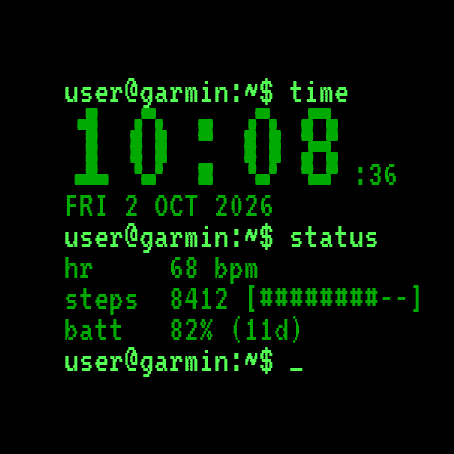
Shell Time turns the watch face into a login shell: a blinking prompt, a big monospace
clock, and your stats printed out like command output. Built for developers, sysadmins
and anyone who feels more at home in a terminal than a dashboard.
user@garmin:~$ time
14:12:08
Tue 29 sep 2026
user@garmin:~$ status
hr 68 bpm
steps 8412 [#####--]
batt 82% (11d)
user@garmin:~$ _
Features:
- Monospace VT323 font, real blinking block cursor (only ticks while the screen is awake)
- Three configurable status lines with ASCII progress bars
- Prompt style: user@garmin, root@fenix, or a bare ~
- Four terminal color themes: Green, Amber, White, Cyan
- Clean always-on display: dim clock and prompt, no burn-in
Data fields (pick any 3 for the status lines):
heart rate, steps, battery, distance, calories, floors, active minutes, body battery,
stress, altitude, notifications, solar intensity, battery days, temperature, sunrise,
sunset, next sun event, respiration, SpO2, recovery time, pressure, resting HR, VO2max,
sleep score, training status, 5K predictor, calendar, weekly run distance, moon phase,
week number, day of year.
Settings: on the watch (hold MENU, then Watch face, then Customize) or in the Connect IQ app.
Since 1.2.0: new data to choose from: weather with icon, wind, humidity, UV, chance of rain, active calories, alarms, phone connection, do not disturb, move bar, 10K, half and full marathon predictions, cycling VO2 max, weekly ride distance and a second time zone (a fixed UTC offset, no daylight saving); time format (12/24 h) and leading zero settings; on touchscreen watches, touch and hold a field to open its screen.
Garmin does not give watch faces access to HRV status or Training Readiness, so no Connect IQ watch face can show them.
Code not working? Write to kontakt@dialforge.dev and we fix it or refund you.
A little request from the maker
Dialforge is my student project. I build these watch faces after classes, so they are still at an early stage, and I could not test every watch model myself. If something looks wrong on your watch, please do not leave a negative rating: write to me first at https://dialforge.dev/faces/shelltime/ and I will fix it, usually within 24 hours. A kind review means more to me than you can imagine. And if you like my work, you can buy me a coffee (the link is at the bottom of dialforge.dev): I am saving up to pay for my studies. Thank you for your patience and for giving a young developer a chance.
7 dni za darmo, potem jednorazowy kod za 3,99 EUR na dialforge.dev. Bez abonamentu.
Twój nadgarstek to teraz sesja w terminalu.
Shell Time zamienia tarczę w powłokę logowania: migający znak zachęty, duży zegar
czcionką o stałej szerokości i Twoje statystyki wypisane jak wynik polecenia. Dla programistów, adminów
i każdego, komu bliżej do terminala niż do kokpitu.
user@garmin:~$ time
14:12:08
Tue 29 sep 2026
user@garmin:~$ status
hr 68 bpm
steps 8412 [#####--]
batt 82% (11d)
user@garmin:~$ _
Co jest na tarczy:
- Czcionka VT323 o stałej szerokości, prawdziwy migający kursor blokowy (miga tylko przy aktywnym ekranie)
- Trzy konfigurowalne linie statusu z paskami postępu w ASCII
- Styl znaku zachęty: user@garmin, root@fenix albo samo ~
- Cztery kolorystyki terminala: zielona, bursztynowa, biała, cyjan
- Czysty tryb zawsze włączony: przygaszony zegar i znak zachęty, bez wypalania ekranu
Pola danych (wybierz dowolne 3 do linii statusu):
tętno, kroki, bateria, dystans, kalorie, piętra, aktywne minuty, Body Battery,
stres, wysokość, powiadomienia, nasłonecznienie, dni na baterii, temperatura, wschód słońca,
zachód słońca, następne zdarzenie słońca, oddech, SpO2, czas regeneracji, ciśnienie, tętno spoczynkowe, VO2max,
ocena snu, stan treningu, prognoza na 5 km, kalendarz, kilometry biegu w tygodniu, faza księżyca,
numer tygodnia, dzień roku.
Ustawienia: na zegarku (przytrzymaj MENU, Tarcza zegarka, Dostosuj) albo w aplikacji Connect IQ.
Od wersji 1.2.0: nowe dane do wyboru: pogoda z ikoną, wiatr, wilgotność, UV, szansa opadów, kalorie aktywne, budziki, połączenie z telefonem, nie przeszkadzać, pasek ruchu, prognozy na 10 km, półmaraton i maraton, VO2 max na rowerze, dystans rowerowy w tygodniu i druga strefa czasu (stałe przesunięcie od UTC, bez zmiany czasu); ustawienia formatu godziny (12/24 h) i zera na początku; na zegarkach z ekranem dotykowym przytrzymanie pola otwiera jego ekran.
Garmin nie udostępnia tarczom statusu HRV ani gotowości treningowej, więc żadna tarcza Connect IQ ich nie pokaże.
Kod nie działa? Napisz na kontakt@dialforge.dev, a naprawimy problem albo oddamy pieniądze.
Mała prośba od autora
Dialforge to mój studencki projekt. Robię te tarcze po zajęciach, więc są jeszcze na wczesnym etapie i nie mogłem przetestować każdego modelu zegarka. Jeśli coś wygląda źle na Twoim zegarku, proszę, nie wystawiaj negatywnej oceny: napisz najpierw do mnie na https://dialforge.dev/faces/shelltime/, a naprawię to, zwykle w ciągu 24 godzin. Życzliwa opinia znaczy dla mnie więcej, niż myślisz. A jeśli podoba Ci się moja praca, możesz postawić mi kawę (link na dole strony dialforge.dev): zbieram na opłacenie studiów. Dziękuję za cierpliwość i za dane szansy młodemu twórcy.
7 Tage kostenlos testen, danach ein einmaliger Freischaltcode für 3,99 EUR auf dialforge.dev. Kein Abo.
Dein Handgelenk ist jetzt eine Terminal-Sitzung.
Shell Time macht aus dem Zifferblatt eine Login-Shell: ein blinkender Prompt, eine große Monospace-Uhr
und deine Werte ausgegeben wie eine Kommandozeile. Gebaut für Entwickler, Systemadmins
und alle, die sich in einem Terminal wohler fühlen als in einem Dashboard.
user@garmin:~$ time
14:12:08
Tue 29 sep 2026
user@garmin:~$ status
hr 68 bpm
steps 8412 [#####--]
batt 82% (11d)
user@garmin:~$ _
Funktionen:
- Monospace-Schrift VT323, echter blinkender Blockcursor (tickt nur bei aktivem Bildschirm)
- Drei konfigurierbare Statuszeilen mit ASCII-Fortschrittsbalken
- Prompt-Stil: user@garmin, root@fenix, oder ein nacktes ~
- Vier Terminal-Farbthemen: Green, Amber, White, Cyan
- Klare Always-on-Anzeige: gedimmte Uhr und Prompt, kein Einbrennen
Datenfelder (wähle beliebige 3 für die Statuszeilen):
Herzfrequenz, Schritte, Akku, Distanz, Kalorien, Etagen, aktive Minuten, Body Battery,
Stress, Höhe, Benachrichtigungen, Sonnenintensität, Akkutage, Temperatur, Sonnenaufgang,
Sonnenuntergang, nächstes Sonnenereignis, Atmung, SpO2, Erholungszeit, Luftdruck, Ruhepuls, VO2max,
Schlafwert, Trainingszustand, 5K-Prognose, Kalender, wöchentliche Laufdistanz, Mondphase,
Wochennummer, Tag des Jahres.
Einstellungen: auf der Uhr (MENU gedrückt halten, dann Watch face, dann Customize) oder in der Connect IQ App.
Seit 1.2.0: neue Daten zur Auswahl: Wetter mit Symbol, Wind, Luftfeuchte, UV, Regenrisiko, aktive Kalorien, Wecker, Telefonverbindung, Nicht stören, Inaktivitätsleiste, Prognosen für 10 km, Halbmarathon und Marathon, VO2max Rad, Rad-Wochendistanz und eine zweite Zeitzone (fester UTC-Versatz, ohne Zeitumstellung); Einstellungen für Zeitformat (12/24 h) und führende Null; auf Uhren mit Touchscreen öffnet langes Drücken auf ein Feld die passende Ansicht.
Garmin gibt Zifferblättern keinen Zugriff auf den HRV-Status oder die Trainingsbereitschaft, daher kann kein Connect IQ Zifferblatt sie anzeigen.
Code funktioniert nicht? Schreib an kontakt@dialforge.dev, wir beheben es oder erstatten dein Geld zurück.
Eine kleine bitte des entwicklers
Dialforge ist mein Studentenprojekt. Ich baue diese Zifferblätter nach den Vorlesungen, deshalb sind sie noch in einer frühen Phase, und ich konnte nicht jedes Uhrenmodell selbst testen. Wenn auf deiner Uhr etwas nicht stimmt, hinterlasse bitte keine schlechte Bewertung: Schreib mir zuerst auf https://dialforge.dev/faces/shelltime/, dann behebe ich es, meist innerhalb von 24 Stunden. Eine freundliche Bewertung bedeutet mir mehr, als du denkst. Und wenn dir meine Arbeit gefällt, kannst du mir einen Kaffee spendieren (den Link findest du unten auf dialforge.dev): Ich spare für mein Studium. Danke für deine Geduld und dafür, dass du einem jungen Entwickler eine Chance gibst.
Essai gratuit de 7 jours, puis un code de déverrouillage unique à 3,99 EUR sur dialforge.dev. Sans abonnement.
Votre poignet est maintenant une session de terminal.
Shell Time transforme le cadran en shell de connexion : un prompt clignotant, une grande horloge
à chasse fixe, et vos statistiques affichées comme une sortie de commande. Conçu pour les développeurs, les administrateurs système
et tous ceux qui se sentent plus à l'aise dans un terminal que dans un tableau de bord.
user@garmin:~$ time
14:12:08
Tue 29 sep 2026
user@garmin:~$ status
hr 68 bpm
steps 8412 [#####--]
batt 82% (11d)
user@garmin:~$ _
Caractéristiques :
- Police à chasse fixe VT323, vrai curseur bloc clignotant (ne bat que quand l'écran est actif)
- Trois lignes de statut configurables avec des barres de progression ASCII
- Style de prompt : user@garmin, root@fenix, ou un simple ~
- Quatre thèmes de couleur terminal : Green, Amber, White, Cyan
- Affichage toujours actif épuré : horloge et prompt atténués, sans marque d'écran
Champs de données (choisissez-en 3 pour les lignes de statut) :
fréquence cardiaque, pas, batterie, distance, calories, étages, minutes actives, body battery,
stress, altitude, notifications, intensité solaire, jours de batterie, température, lever du soleil,
coucher du soleil, prochain événement solaire, respiration, SpO2, temps de récupération, pression, FC au repos, VO2max,
score de sommeil, statut d'entraînement, prédicteur 5 km, calendrier, distance de course hebdomadaire, phase lunaire,
numéro de semaine, jour de l'année.
Réglages : sur la montre (maintenez MENU, puis Watch face, puis Customize) ou dans l'application Connect IQ.
Depuis la 1.2.0 : nouvelles données au choix : météo avec icône, vent, humidité, UV, risque de pluie, calories actives, alarmes, connexion du téléphone, ne pas déranger, barre d'activité, prévisions 10 km, semi et marathon, VO2 max vélo, distance vélo de la semaine et un second fuseau horaire (décalage UTC fixe, sans changement d'heure); réglages du format de l'heure (12/24 h) et du zéro initial; sur les montres tactiles, un appui long sur un champ ouvre son écran.
Garmin ne donne pas aux cadrans l'accès au statut VFC ni à la disponibilité d'entraînement, aucun cadran Connect IQ ne peut donc les afficher.
Le code ne fonctionne pas ? Écrivez à kontakt@dialforge.dev, nous le réparons ou vous remboursons.
Une petite demande du créateur
Dialforge est mon projet étudiant. Je crée ces cadrans après les cours, ils en sont donc encore à un stade précoce, et je n'ai pas pu tester tous les modèles de montre. Si quelque chose ne va pas sur votre montre, s'il vous plaît, ne laissez pas de note négative : écrivez-moi d'abord sur https://dialforge.dev/faces/shelltime/ et je corrigerai cela, en général sous 24 heures. Un avis bienveillant compte plus que vous ne l'imaginez. Et si vous aimez mon travail, vous pouvez m'offrir un café (le lien se trouve en bas de dialforge.dev) : j'économise pour payer mes études. Merci pour votre patience et pour la chance donnée à un jeune développeur.
Prueba gratuita de 7 días y luego un código de desbloqueo único de 3,99 EUR en dialforge.dev. Sin suscripción.
Tu muñeca ahora es una sesión de terminal.
Shell Time convierte la esfera en una shell de inicio de sesión: un prompt parpadeante, un reloj grande
de fuente monoespaciada y tus datos impresos como la salida de un comando. Pensado para desarrolladores, administradores de sistemas
y cualquiera que se sienta más cómodo en una terminal que en un panel de control.
user@garmin:~$ time
14:12:08
Tue 29 sep 2026
user@garmin:~$ status
hr 68 bpm
steps 8412 [#####--]
batt 82% (11d)
user@garmin:~$ _
Características:
- Fuente monoespaciada VT323, cursor de bloque parpadeante real (solo late con la pantalla activa)
- Tres líneas de estado configurables con barras de progreso ASCII
- Estilo de prompt: user@garmin, root@fenix, o un simple ~
- Cuatro temas de color de terminal: Green, Amber, White, Cyan
- Pantalla siempre activa limpia: reloj y prompt atenuados, sin marcas en la pantalla
Campos de datos (elige 3 cualesquiera para las líneas de estado):
frecuencia cardiaca, pasos, batería, distancia, calorías, pisos, minutos activos, body battery,
estrés, altitud, notificaciones, intensidad solar, días de batería, temperatura, amanecer,
atardecer, próximo evento solar, respiración, SpO2, tiempo de recuperación, presión, FC en reposo, VO2max,
puntuación de sueño, estado de entrenamiento, predictor de 5 km, calendario, distancia semanal de carrera, fase lunar,
número de semana, día del año.
Ajustes: en el reloj (mantén pulsado MENU, luego Watch face, luego Customize) o en la app Connect IQ.
Desde la 1.2.0: nuevos datos para elegir: tiempo con icono, viento, humedad, UV, probabilidad de lluvia, calorías activas, alarmas, conexión del teléfono, no molestar, barra de movimiento, predicciones de 10 km, media maratón y maratón, VO2 máx. en bici, distancia semanal en bici y una segunda zona horaria (desfase UTC fijo, sin cambio de hora); ajustes de formato de hora (12/24 h) y cero inicial; en relojes táctiles, mantén pulsado un campo para abrir su pantalla.
Garmin no da a las esferas acceso al estado de VFC ni a la disponibilidad para entrenar, así que ninguna esfera Connect IQ puede mostrarlos.
¿El código no funciona? Escribe a kontakt@dialforge.dev y lo arreglamos o te devolvemos el dinero.
Una pequeña petición del creador
Dialforge es mi proyecto de estudiante. Creo estas esferas después de clase, así que todavía están en una fase temprana y no pude probar todos los modelos de reloj. Si algo no se ve bien en tu reloj, por favor no dejes una valoración negativa: escríbeme primero en https://dialforge.dev/faces/shelltime/ y lo arreglaré, normalmente en 24 horas. Una reseña amable significa para mí más de lo que imaginas. Y si te gusta mi trabajo, puedes invitarme a un café (el enlace está al final de dialforge.dev): estoy ahorrando para pagar mis estudios. Gracias por tu paciencia y por darle una oportunidad a un desarrollador joven.
7 dagen gratis proberen, daarna een eenmalige ontgrendelcode van 3,99 EUR op dialforge.dev. Geen abonnement.
Je pols is nu een terminalsessie.
Shell Time maakt van de wijzerplaat een login-shell: een knipperende prompt, een grote klok
in monospace-lettertype en je statistieken afgedrukt als commandoregel-uitvoer. Gemaakt voor developers, sysadmins
en iedereen die zich meer thuis voelt in een terminal dan in een dashboard.
user@garmin:~$ time
14:12:08
Tue 29 sep 2026
user@garmin:~$ status
hr 68 bpm
steps 8412 [#####--]
batt 82% (11d)
user@garmin:~$ _
Functies:
- Monospace-lettertype VT323, echte knipperende blokcursor (tikt alleen als het scherm actief is)
- Drie instelbare statusregels met ASCII-voortgangsbalken
- Promptstijl: user@garmin, root@fenix, of een kale ~
- Vier terminal-kleurthema's: Green, Amber, White, Cyan
- Strak always-on scherm: gedimde klok en prompt, geen inbranden
Datavelden (kies er 3 voor de statusregels):
hartslag, stappen, batterij, afstand, calorieën, verdiepingen, actieve minuten, body battery,
stress, hoogte, meldingen, zonintensiteit, batterijdagen, temperatuur, zonsopkomst,
zonsondergang, volgende zongebeurtenis, ademhaling, SpO2, hersteltijd, luchtdruk, rusthartslag, VO2max,
slaapscore, trainingsstatus, 5K-voorspeller, agenda, wekelijkse hardloopafstand, maanfase,
weeknummer, dag van het jaar.
Instellingen: op het horloge (houd MENU ingedrukt, dan Watch face, dan Customize) of in de Connect IQ-app.
Sinds 1.2.0: nieuwe gegevens om te kiezen: weer met pictogram, wind, luchtvochtigheid, UV, kans op regen, actieve calorieën, alarmen, telefoonverbinding, niet storen, beweegbalk, voorspellingen voor 10 km, halve en hele marathon, VO2 max fietsen, fietsafstand deze week en een tweede tijdzone (vaste UTC-afwijking, zonder zomertijd); instellingen voor tijdnotatie (12/24 u) en voorloopnul; op horloges met touchscreen opent lang drukken op een veld het bijbehorende scherm.
Garmin geeft wijzerplaten geen toegang tot de HRV-status of trainingsgereedheid, dus geen enkele Connect IQ-wijzerplaat kan die tonen.
Werkt de code niet? Mail naar kontakt@dialforge.dev en we lossen het op of betalen je terug.
Een klein verzoek van de maker
Dialforge is mijn studentenproject. Ik maak deze wijzerplaten na de colleges, dus ze zijn nog in een vroeg stadium en ik kon niet elk horlogemodel zelf testen. Ziet er iets verkeerd uit op je horloge, geef dan alsjeblieft geen negatieve beoordeling: schrijf me eerst via https://dialforge.dev/faces/shelltime/, dan los ik het op, meestal binnen 24 uur. Een vriendelijke review betekent meer voor me dan je denkt. En als je mijn werk waardeert, kun je een koffie voor me kopen (de link staat onderaan dialforge.dev): ik spaar om mijn studie te betalen. Bedankt voor je geduld en voor de kans die je een jonge ontwikkelaar geeft.
7日間無料でお試しいただけます。その後は dialforge.dev で 3.99 EUR の買い切りアンロックコードをご購入ください。サブスクリプションはありません。
あなたの手首が、ターミナルセッションになります。
Shell Time はウォッチフェイスをログインシェルに変えます。点滅するプロンプト、大きな等幅フォントの
時計、そしてコマンドの出力のように表示されるデータ。開発者、システム管理者、
ダッシュボードよりターミナルのほうが落ち着く人のために作りました。
user@garmin:~$ time
14:12:08
Tue 29 sep 2026
user@garmin:~$ status
hr 68 bpm
steps 8412 [#####--]
batt 82% (11d)
user@garmin:~$ _
機能:
- 等幅フォント VT323、本物のブロックカーソルが点滅(画面が点灯している間だけ動作)
- ASCII のプログレスバー付きで、ステータス行を三行まで設定可能
- プロンプトの種類: user@garmin、root@fenix、またはシンプルな ~
- ターミナル風カラーテーマ四種類: グリーン、アンバー、ホワイト、シアン
- すっきりしたAlways-on表示: 時計とプロンプトを暗く表示し、焼き付きを防止
データ項目(ステータス行に好きな3つを選択):
心拍数、歩数、バッテリー、距離、カロリー、上った階数、アクティブ時間、Body Battery、
ストレス、高度、通知、日射強度、バッテリー残り日数、気温、日の出、
日の入り、次の太陽イベント、呼吸数、SpO2、回復時間、気圧、安静時心拍数、VO2max、
睡眠スコア、トレーニングステータス、5K予測、カレンダー、週間ランニング距離、月齢、
週番号、年間通算日。
設定: ウォッチ本体(MENU を長押し、ウォッチフェイス、カスタマイズの順に選択)または Connect IQ アプリで行えます。
1.2.0 以降: 選べるデータが増えました。アイコン付きの天気、風、湿度、UV、降水確率、アクティブカロリー、アラーム、スマートフォン接続、おやすみモード、ムーブバー、10K、ハーフマラソンとフルマラソンの予測、サイクリングVO2 max、週間ライド距離、第二タイムゾーン(固定のUTCオフセットで、夏時間なし)。さらに時刻形式(12/24時間)と先頭ゼロの設定、タッチスクリーン搭載モデルでは項目を長押ししてその画面を開く操作にも対応しました。
Garmin はウォッチフェイスにHRVステータスやTraining Readinessへのアクセスを許可していないため、どのConnect IQウォッチフェイスでもこれらを表示できません。
コードが使えない場合は kontakt@dialforge.dev までご連絡ください。修正するか、返金いたします。
作者からのささやかなお願い
Dialforgeは私の学生プロジェクトです。授業のあとにこれらの文字盤を作っているため、まだ初期段階で、すべての時計モデルで試すことはできませんでした。お使いの時計で表示がおかしいときは、低い評価をつけずに、まずhttps://dialforge.dev/faces/shelltime/ で私に連絡してください。通常24時間以内に修正します。温かいレビューは、想像以上にうれしいものです。私の仕事を気に入っていただけたら、コーヒーをおごっていただくこともできます(リンクはdialforge.devの一番下にあります)。学費を貯めているところです。ご辛抱いただき、若い開発者にチャンスをくださってありがとうございます。
Prova gratuita di 7 giorni, poi un codice di sblocco una tantum da 3,99 EUR su dialforge.dev. Nessun abbonamento.
Il tuo polso adesso è una sessione di terminale.
Shell Time trasforma il quadrante in una shell di login: un prompt lampeggiante, un grande orologio
a spaziatura fissa e le tue statistiche stampate come output di un comando. Pensato per sviluppatori, sysadmin
e chiunque si senta più a suo agio in un terminale che in una dashboard.
user@garmin:~$ time
14:12:08
Tue 29 sep 2026
user@garmin:~$ status
hr 68 bpm
steps 8412 [#####--]
batt 82% (11d)
user@garmin:~$ _
Caratteristiche:
- Font a spaziatura fissa VT323, vero cursore a blocco lampeggiante (batte solo a schermo attivo)
- Tre righe di stato configurabili con barre di avanzamento ASCII
- Stile del prompt: user@garmin, root@fenix, o un semplice ~
- Quattro temi colore terminale: Green, Amber, White, Cyan
- Display always-on pulito: orologio e prompt attenuati, senza burn-in
Campi dati (scegline 3 qualsiasi per le righe di stato):
frequenza cardiaca, passi, batteria, distanza, calorie, piani, minuti attivi, body battery,
stress, altitudine, notifiche, intensità solare, giorni di batteria, temperatura, alba,
tramonto, prossimo evento solare, respirazione, SpO2, tempo di recupero, pressione, FC a riposo, VO2max,
punteggio del sonno, stato di allenamento, predittore 5 km, calendario, distanza di corsa settimanale, fase lunare,
numero di settimana, giorno dell'anno.
Impostazioni: sull'orologio (tieni premuto MENU, poi Watch face, poi Customize) o nell'app Connect IQ.
Dalla 1.2.0: nuovi dati da scegliere: meteo con icona, vento, umidità, UV, probabilità di pioggia, calorie attive, sveglie, connessione del telefono, non disturbare, barra movimento, previsioni 10 km, mezza e maratona, VO2 max bici, distanza settimanale in bici e un secondo fuso orario (scarto UTC fisso, senza ora legale); impostazioni del formato ora (12/24 h) e dello zero iniziale; sugli orologi touch, tieni premuto un campo per aprire la sua schermata.
Garmin non dà ai quadranti accesso allo stato HRV né alla Training Readiness, quindi nessun quadrante Connect IQ può mostrarli.
Il codice non funziona? Scrivi a kontakt@dialforge.dev e lo sistemiamo o ti rimborsiamo.
Una piccola richiesta dall'autore
Dialforge è il mio progetto da studente. Creo questi quadranti dopo le lezioni, quindi sono ancora in una fase iniziale e non ho potuto provare ogni modello di orologio. Se qualcosa sembra sbagliato sul tuo orologio, per favore non lasciare una valutazione negativa: scrivimi prima su https://dialforge.dev/faces/shelltime/ e lo correggo, di solito entro 24 ore. Una recensione gentile per me conta più di quanto immagini. E se ti piace il mio lavoro, puoi offrirmi un caffè (il link è in fondo a dialforge.dev): sto mettendo da parte i soldi per pagarmi gli studi. Grazie per la pazienza e per aver dato una possibilità a un giovane sviluppatore.
7 天免费试用,之后在 dialforge.dev 一次性购买解锁码,3.99 EUR。无订阅。
你的手腕现在就是一个终端会话。
Shell Time 把表盘变成登录 shell:闪烁的提示符、大号等宽时钟,
以及像命令输出一样打印出来的各项数据。为开发者、系统管理员,
以及所有觉得终端比仪表盘更顺手的人打造。
user@garmin:~$ time
14:12:08
Tue 29 sep 2026
user@garmin:~$ status
hr 68 bpm
steps 8412 [#####--]
batt 82% (11d)
user@garmin:~$ _
功能:
- 等宽 VT323 字体,真实闪烁的方块光标(仅在屏幕亮起时跳动)
- 三行可配置的状态行,带 ASCII 进度条
- 提示符样式:user@garmin、root@fenix,或单独一个 ~
- 四种终端配色:绿色、琥珀色、白色、青色
- 简洁的息屏常亮显示:时钟和提示符调暗,不会烧屏
数据项(任选 3 项显示在状态行中):
心率、步数、电量、距离、卡路里、楼层、活动分钟数、Body Battery、
压力、海拔、通知、太阳辐射强度、电池天数、温度、日出、
日落、下一个日照事件、呼吸、SpO2、恢复时间、气压、静息心率、VO2max、
睡眠评分、训练状态、5k 预测、日历、每周跑步距离、月相、
周数、年内第几天。
设置:在手表上(长按 MENU,然后选择表盘,再选择自定义),或在 Connect IQ 应用中。
自 1.2.0 起:新增可选数据:带图标的天气、风、湿度、紫外线、降雨概率、活动卡路里、闹钟、手机连接、勿扰模式、活动提醒条、10K、半程和全程马拉松预测、骑行 VO2 max、每周骑行距离,以及第二时区(固定 UTC 偏移,无夏令时);新增时间格式(12/24 小时)和前导零设置;在触屏手表上,长按某个数据项即可打开其界面。
Garmin 不允许表盘读取 HRV 状态或 Training Readiness,因此任何 Connect IQ 表盘都无法显示它们。
解锁码无法使用?请写信到 kontakt@dialforge.dev,我们会帮你修复或退款。
作者的一个小请求
Dialforge 是我的学生项目。我在课余时间制作这些表盘,所以它们还处于早期阶段,我也没法在每一款手表上测试。如果表盘在你的手表上显示有问题,请不要打差评,请先到 https://dialforge.dev/faces/shelltime/ 告诉我,我会修复,通常在 24 小时内。一条友善的评价对我来说比你想象的更有意义。如果你喜欢我的作品,也可以请我喝杯咖啡(链接在 dialforge.dev 页面底部):我在攒钱付学费。感谢你的耐心,也感谢你给一个年轻开发者机会。
7-дневный бесплатный пробный период, затем разовый код разблокировки за 3,99 EUR на dialforge.dev. Без подписки.
Ваше запястье теперь - терминальная сессия.
Shell Time превращает циферблат в командную оболочку: мигающее приглашение, крупные моноширинные
часы и статистика, выводимая как результат выполнения команды. Создан для разработчиков, системных администраторов
и всех, кто в терминале чувствует себя уютнее, чем на обычной панели приборов.
user@garmin:~$ time
14:12:08
Tue 29 sep 2026
user@garmin:~$ status
hr 68 bpm
steps 8412 [#####--]
batt 82% (11d)
user@garmin:~$ _
Особенности:
- Моноширинный шрифт VT323, настоящий мигающий блочный курсор (мигает только при активном экране)
- Три настраиваемые строки состояния со шкалами прогресса ASCII
- Стиль приглашения: user@garmin, root@fenix или просто ~
- Четыре цветовые темы терминала: Green, Amber, White, Cyan
- Лаконичный режим всегда включенного экрана: приглушенные часы и командная строка, защита от выгорания
Поля данных (выберите любые 3 для строк состояния):
пульс, шаги, батарея, расстояние, калории, этажи, минуты активности, Body Battery,
стресс, высота, уведомления, интенсивность солнечной энергии, дни работы батареи, температура, восход,
закат, следующее солнечное событие, частота дыхания, SpO2, время восстановления, давление, пульс в покое, VO2max,
оценка сна, статус тренировки, прогноз на 5K, календарь, дистанция бега за неделю, фаза луны,
номер недели, день года.
Настройки: на часах (удерживайте MENU, затем «Циферблат», затем «Настройка») или в приложении Connect IQ.
Начиная с версии 1.2.0: новые данные на выбор: погода со значком, ветер, влажность, UV, вероятность дождя, активные калории, будильники, подключение к телефону, режим «Не беспокоить», индикатор движения, прогнозы на 10K, полумарафон и марафон, велосипедный VO2 max, дистанция велопоездок за неделю и второй часовой пояс (фиксированное смещение относительно UTC, без перехода на летнее время); настройки формата времени (12/24 h) и начального нуля; на часах с сенсорным экраном коснитесь поля и удерживайте его, чтобы открыть соответствующий экран.
Garmin не дает циферблатам доступа к статусу HRV или Training Readiness, поэтому ни один циферблат Connect IQ не может их показывать.
Код не работает? Напишите на kontakt@dialforge.dev, и мы все исправим или вернем деньги.
Небольшая просьба от автора
Dialforge - это мой студенческий проект. Я делаю эти циферблаты после занятий, поэтому они ещё на раннем этапе, и я не мог проверить каждую модель часов. Если что-то выглядит неправильно на ваших часах, пожалуйста, не ставьте низкую оценку: сначала напишите мне на https://dialforge.dev/faces/shelltime/, и я всё исправлю, обычно в течение 24 часов. Доброе слово в отзыве значит для меня больше, чем вы думаете. А если вам нравится моя работа, можете угостить меня кофе (ссылка внизу страницы dialforge.dev): я коплю на оплату учёбы. Спасибо за терпение и за то, что даёте шанс молодому разработчику.
Teste grátis de 7 dias, depois um código de desbloqueio único de 3,99 EUR em dialforge.dev. Sem assinatura.
Seu pulso agora é uma sessão de terminal.
Shell Time transforma o mostrador em um login shell: um prompt piscando, um relógio grande
em fonte monoespaçada e suas estatísticas impressas como saída de comando. Feito para desenvolvedores, sysadmins
e qualquer um que se sinta mais em casa num terminal do que num dashboard.
user@garmin:~$ time
14:12:08
Tue 29 sep 2026
user@garmin:~$ status
hr 68 bpm
steps 8412 [#####--]
batt 82% (11d)
user@garmin:~$ _
Recursos:
- Fonte monoespaçada VT323, cursor de bloco piscando de verdade (só pisca com a tela ativa)
- Três linhas de status configuráveis com barras de progresso em ASCII
- Estilo de prompt: user@garmin, root@fenix, ou um simples ~
- Quatro temas de cor do terminal: Green, Amber, White, Cyan
- Tela sempre ativa limpa: relógio e prompt atenuados, sem burn-in
Campos de dados (escolha 3 quaisquer para as linhas de status):
frequência cardíaca, passos, bateria, distância, calorias, andares, minutos ativos, body battery,
estresse, altitude, notificações, intensidade solar, dias de bateria, temperatura, nascer do sol,
pôr do sol, próximo evento solar, respiração, SpO2, tempo de recuperação, pressão, FC em repouso, VO2max,
pontuação de sono, status de treino, previsor de 5 km, calendário, distância semanal de corrida, fase da lua,
número da semana, dia do ano.
Configurações: no relógio (segure MENU, depois Watch face, depois Customize) ou no app Connect IQ.
Desde a 1.2.0: novos dados para escolher: tempo com ícone, vento, umidade, UV, chance de chuva, calorias ativas, alarmes, conexão do telefone, não perturbe, barra de movimento, previsões de 10 km, meia e maratona, VO2 máx. no ciclismo, distância semanal de bike e um segundo fuso horário (deslocamento UTC fixo, sem horário de verão); ajustes de formato da hora (12/24 h) e zero à esquerda; em relógios com tela sensível ao toque, toque e segure um campo para abrir a tela dele.
A Garmin não dá aos mostradores acesso ao status de VFC nem à prontidão para treino, então nenhum mostrador Connect IQ consegue exibi-los.
O código não funciona? Escreva para kontakt@dialforge.dev e a gente resolve ou devolve seu dinheiro.
Um pequeno pedido do criador
O Dialforge é o meu projeto de estudante. Eu crio estes mostradores depois das aulas, então eles ainda estão numa fase inicial, e não consegui testar todos os modelos de relógio. Se algo parecer errado no seu relógio, por favor, não deixe uma avaliação negativa: escreva primeiro para mim em https://dialforge.dev/faces/shelltime/ e eu corrijo, normalmente em até 24 horas. Uma avaliação gentil significa para mim mais do que você imagina. E se você gosta do meu trabalho, pode me pagar um café (o link está no final de dialforge.dev): estou juntando dinheiro para pagar meus estudos. Obrigado pela paciência e por dar uma chance a um desenvolvedor iniciante.
7denní bezplatná zkušební verze, poté jednorázový odemykací kód za 3,99 EUR na dialforge.dev. Žádné předplatné.
Vaše zápěstí je teď relace terminálu.
Shell Time promění ciferník v přihlašovací shell: blikající prompt, velké neproporcionální
hodiny a vaše statistiky vypsané jako výstup příkazu. Vytvořeno pro vývojáře, správce systémů
a každého, kdo se cítí více doma v terminálu než na ovládacím panelu.
user@garmin:~$ time
14:12:08
Tue 29 sep 2026
user@garmin:~$ status
hr 68 bpm
steps 8412 [#####--]
batt 82% (11d)
user@garmin:~$ _
Funkce:
- Neproporcionální písmo VT323, skutečný blikající blokový kurzor (bliká pouze při aktivním displeji)
- Tři nastavitelné stavové řádky s ASCII ukazateli průběhu
- Styl promptu: user@garmin, root@fenix nebo samotné ~
- Čtyři barevné motivy terminálu: zelená, jantarová, bílá, azurová
- Čistý režim always-on: ztlumené hodiny a prompt, bez vypalování displeje
Datová pole (vyberte libovolná 3 pro stavové řádky):
srdeční tep, kroky, baterie, vzdálenost, kalorie, patra, minuty aktivity, Body Battery,
stres, nadmořská výška, oznámení, intenzita slunečního záření, výdrž baterie ve dnech, teplota, východ slunce,
západ slunce, další sluneční událost, dýchání, SpO2, doba regenerace, tlak, klidový srdeční tep, VO2 max,
skóre spánku, stav tréninku, předpověď na 5K, kalendář, týdenní běžecká vzdálenost, fáze měsíce,
číslo týdne, den v roce.
Nastavení: v hodinkách (podržte MENU, pak Vzhled hodinek, pak Upravit) nebo v aplikaci Connect IQ.
Od verze 1.2.0: nová data na výběr: počasí s ikonou, vítr, vlhkost, UV, pravděpodobnost deště, aktivní kalorie, budíky, připojení k telefonu, nerušit, výzva k pohybu, předpovědi pro 10K, půlmaraton a maraton, cyklistické VO2 max, týdenní vzdálenost na kole a druhé časové pásmo (pevný posun vůči UTC, bez letního času); nastavení formátu času (12/24 h) a úvodní nuly; na hodinkách s dotykovým displejem otevřete obrazovku daného údaje dotykem a podržením pole.
Garmin neposkytuje ciferníkům přístup ke stavu HRV ani k Training Readiness, takže je nemůže zobrazit žádný ciferník z Connect IQ.
Kód nefunguje? Napište na kontakt@dialforge.dev a my vše vyřešíme nebo vám vrátíme peníze.
Malá prosba od tvůrce
Dialforge je můj studentský projekt. Tyto ciferníky dělám po škole, takže jsou zatím v rané fázi a nemohl jsem otestovat každý model hodinek. Pokud na vašich hodinkách něco nevypadá v pořádku, prosím, nedávejte negativní hodnocení: napište mi nejdřív na https://dialforge.dev/faces/shelltime/ a já to opravím, obvykle do 24 hodin. Milá recenze pro mě znamená víc, než si dokážete představit. A pokud se vám moje práce líbí, můžete mi koupit kávu (odkaz je dole na dialforge.dev): šetřím si na zaplacení studia. Děkuji vám za trpělivost a za to, že dáváte mladému vývojáři šanci.
7 dias de teste gratuito, depois um código de desbloqueio único de 3,99 EUR em dialforge.dev. Sem subscrição.
O seu pulso é agora uma sessão de terminal.
O Shell Time transforma o mostrador do relógio numa shell de início de sessão: uma prompt a piscar, um relógio
monoespaçado grande e as suas estatísticas apresentadas como a saída de um comando. Concebido para programadores, administradores de sistemas
e qualquer pessoa que se sinta mais à vontade num terminal do que num painel de instrumentos.
user@garmin:~$ time
14:12:08
Tue 29 sep 2026
user@garmin:~$ status
hr 68 bpm
steps 8412 [#####--]
batt 82% (11d)
user@garmin:~$ _
Funcionalidades:
- Tipo de letra monoespaçado VT323, cursor de bloco intermitente real (só pisca enquanto o ecrã estiver ativo)
- Três linhas de estado configuráveis com barras de progresso ASCII
- Estilo de prompt: user@garmin, root@fenix ou apenas ~
- Quatro temas de cor de terminal: Verde, Âmbar, Branco, Ciano
- Ecrã always-on limpo: relógio e prompt atenuados, sem burn-in
Campos de dados (escolha 3 quaisquer para as linhas de estado):
frequência cardíaca, passos, bateria, distância, calorias, andares, minutos ativos, Body Battery,
stress, altitude, notificações, intensidade solar, dias de bateria, temperatura, nascer do sol,
pôr do sol, próximo evento solar, respiração, SpO2, tempo de recuperação, pressão, FC em repouso, VO2max,
pontuação de sono, estado de treino, previsão de 5K, calendário, distância de corrida semanal, fase da lua,
número da semana, dia do ano.
Definições: no relógio (mantenha premido MENU, depois Mostrador e depois Personalizar) ou na aplicação Connect IQ.
Desde a versão 1.2.0: novos dados à escolha: meteorologia com ícone, vento, humidade, UV, probabilidade de chuva, calorias ativas, alarmes, ligação ao telemóvel, não incomodar, barra de movimento, previsões para 10K, meia maratona e maratona completa, VO2 max de ciclismo, distância de ciclismo semanal e um segundo fuso horário (um desvio UTC fixo, sem horário de verão); definições de formato de hora (12/24 h) e de zero inicial; em relógios com ecrã tátil, toque e mantenha premido um campo para abrir o respetivo ecrã.
A Garmin não dá aos mostradores acesso ao estado de HRV nem à Training Readiness, pelo que nenhum mostrador Connect IQ os pode apresentar.
O código não funciona? Escreva para kontakt@dialforge.dev e resolvemos o problema ou fazemos o reembolso.
Um pequeno pedido do criador
O Dialforge é o meu projeto de estudante. Crio estes mostradores depois das aulas, por isso ainda estão numa fase inicial, e não consegui testar todos os modelos de relógio. Se algo parecer errado no seu relógio, por favor não deixe uma avaliação negativa: escreva-me primeiro em https://dialforge.dev/faces/shelltime/ e eu corrijo, normalmente em 24 horas. Uma avaliação simpática significa para mim mais do que imagina. E se gostar do meu trabalho, pode oferecer-me um café (a ligação está no fundo de dialforge.dev): estou a poupar para pagar os meus estudos. Obrigado pela sua paciência e por dar uma oportunidade a um jovem programador.
7일 무료 체험 후, dialforge.dev에서 3.99 EUR 일회성 잠금 해제 코드를 구매하세요. 구독은 없습니다.
이제 손목이 터미널 세션이 됩니다.
Shell Time은 워치페이스를 로그인 셸로 바꿉니다. 깜박이는 프롬프트, 큰 고정폭
시계, 그리고 명령어 출력처럼 찍혀 나오는 통계. 개발자, 시스템 관리자,
그리고 대시보드보다 터미널이 편한 모든 분을 위해 만들었습니다.
user@garmin:~$ time
14:12:08
Tue 29 sep 2026
user@garmin:~$ status
hr 68 bpm
steps 8412 [#####--]
batt 82% (11d)
user@garmin:~$ _
기능:
- 고정폭 VT323 글꼴, 실제처럼 깜박이는 블록 커서(화면이 켜져 있는 동안에만 작동)
- ASCII 진행 막대가 있는 설정 가능한 상태 줄 세 개
- 프롬프트 스타일: user@garmin, root@fenix, 또는 ~만 표시
- 네 가지 터미널 색상 테마: Green, Amber, White, Cyan
- 깔끔한 상시 표시 화면: 어두운 시계와 프롬프트, 번인 없음
데이터 필드(상태 줄 3개에 원하는 항목을 선택):
심박수, 걸음 수, 배터리, 거리, 칼로리, 층수, 활동 시간, Body Battery,
스트레스, 고도, 알림, 태양광 강도, 배터리 잔여 일수, 온도, 일출,
일몰, 다음 태양 이벤트, 호흡, SpO2, 회복 시간, 기압, 안정 시 심박수, VO2max,
수면 점수, 트레이닝 상태, 5K 예측, 캘린더, 주간 달리기 거리, 월상,
주차, 연중 일수.
설정: 시계에서(MENU를 길게 누른 다음 워치페이스, 사용자 설정) 또는 Connect IQ 앱에서 변경할 수 있습니다.
1.2.0부터 선택 가능한 새 데이터: 아이콘이 있는 날씨, 바람, 습도, UV, 강수 확률, 활동 칼로리, 알람, 휴대전화 연결, 방해 금지, 활동 알림 바, 10K, 하프 및 풀 마라톤 예측, 사이클링 VO2 max, 주간 라이딩 거리, 두 번째 시간대(고정 UTC 오프셋, 서머타임 없음); 시간 형식(12/24시간) 및 앞자리 영 표시 설정; 터치스크린 시계에서는 필드를 길게 누르면 해당 화면이 열립니다.
Garmin은 워치페이스에 HRV 상태나 Training Readiness에 대한 접근을 허용하지 않으므로, 어떤 Connect IQ 워치페이스도 이를 표시할 수 없습니다.
코드가 작동하지 않나요? kontakt@dialforge.dev로 연락 주시면 해결해 드리거나 환불해 드립니다.
제작자의 작은 부탁
Dialforge는 제 학생 프로젝트입니다. 수업이 끝난 뒤에 이 워치페이스들을 만들고 있어서 아직 초기 단계이고, 모든 시계 모델을 직접 테스트하지는 못했습니다. 시계에서 이상한 점이 보이면 낮은 평점을 남기지 마시고 먼저 https://dialforge.dev/faces/shelltime/에서 알려 주세요. 보통 24시간 안에 고치겠습니다. 따뜻한 리뷰 하나가 제게는 상상 이상으로 큰 힘이 됩니다. 제 작업이 마음에 드신다면 커피를 사주실 수도 있습니다(링크는 dialforge.dev 맨 아래에 있습니다). 학비를 모으고 있습니다. 기다려 주시고 젊은 개발자에게 기회를 주셔서 감사합니다.
7 dagars gratis provperiod, sedan en upplåsningskod som engångsköp för 3,99 EUR på dialforge.dev. Ingen prenumeration.
Din handled är nu en terminalsession.
Shell Time förvandlar urtavlan till ett inloggningsskal: en blinkande prompt, en stor monospace-
klocka och din statistik utskriven som kommandoutdata. Byggd för utvecklare, sysadmins
och alla som känner sig mer hemma i en terminal än i en instrumentpanel.
user@garmin:~$ time
14:12:08
Tue 29 sep 2026
user@garmin:~$ status
hr 68 bpm
steps 8412 [#####--]
batt 82% (11d)
user@garmin:~$ _
Funktioner:
- Monospace VT323-typsnitt, äkta blinkande blockmarkör (tickar bara medan skärmen är aktiv)
- Tre anpassningsbara statusrader med ASCII-förloppsindikatorer
- Promptstil: user@garmin, root@fenix eller bara ett ~
- Fyra färgteman för terminalen: Grön, Bärnsten, Vit, Cyan
- Ren alltid på-skärm: dämpad klocka och prompt, ingen inbränning
Datafält (välj vilka 3 som helst för statusraderna):
puls, steg, batteri, distans, kalorier, våningar, aktiva minuter, Body Battery,
stress, höjd, aviseringar, solintensitet, batteridagar, temperatur, soluppgång,
solnedgång, nästa solhändelse, andning, SpO2, återhämtningstid, lufttryck, vilopuls, VO2 max,
sömnresultat, träningsstatus, 5K-prognos, kalender, veckans löpdistans, månfas,
veckonummer, dag på året.
Inställningar: på klockan (håll in MENU, sedan Urtavla, sedan Anpassa) eller i Connect IQ-appen.
Sedan 1.2.0: ny data att välja mellan: väder med ikon, vind, luftfuktighet, UV, regnrisk, aktiva kalorier, alarm, telefonanslutning, stör ej, rörelsestapel, prognoser för 10K, halvmaraton och maraton, cykling-VO2 max, cykeldistans per vecka och en andra tidszon (en fast UTC-förskjutning, ingen sommartid); inställningar för tidsformat (12/24 h) och inledande nolla; på klockor med pekskärm kan du trycka och hålla på ett fält för att öppna dess skärm.
Garmin ger inte urtavlor åtkomst till HRV-status eller Training Readiness, så ingen Connect IQ-urtavla kan visa dem.
Fungerar inte koden? Skriv till kontakt@dialforge.dev så löser vi det eller ger dig pengarna tillbaka.
En liten önskan från skaparen
Dialforge är mitt studentprojekt. Jag bygger de här urtavlorna efter lektionerna, så de är fortfarande på ett tidigt stadium och jag kunde inte testa varje klockmodell själv. Om något ser fel ut på din klocka, lämna gärna inget negativt betyg: skriv först till mig på https://dialforge.dev/faces/shelltime/ så fixar jag det, vanligtvis inom 24 timmar. En vänlig recension betyder mer för mig än du kan ana. Och om du gillar mitt arbete kan du bjuda mig på en kaffe (länken finns längst ned på dialforge.dev): jag sparar ihop till mina studier. Tack för ditt tålamod och för att du ger en ung utvecklare en chans.
7 dages gratis prøveperiode, derefter en engangskode til 3,99 EUR på dialforge.dev. Intet abonnement.
Dit håndled er nu en terminalsession.
Shell Time gør urskiven til en login-shell: en blinkende prompt, et stort monospace-
ur og dine tal skrevet ud som kommandooutput. Lavet til udviklere, sysadmins
og alle, der er mere hjemme i en terminal end i et dashboard.
user@garmin:~$ time
14:12:08
Tir 29 sep 2026
user@garmin:~$ status
hr 68 bpm
steps 8412 [#####--]
batt 82% (11d)
user@garmin:~$ _
Funktioner:
- Monospace-skrifttypen VT323, rigtig blinkende blokmarkør (blinker kun, mens skærmen er vågen)
- Tre indstillelige statuslinjer med ASCII-statusbjælker
- Promptstil: user@garmin, root@fenix eller bare ~
- Fire farvetemaer til terminalen: Grøn, Rav, Hvid, Cyan
- Ren always-on-visning: dæmpet ur og prompt, ingen indbrænding
Datafelter (vælg vilkårlige 3 til statuslinjerne):
puls, skridt, batteri, distance, kalorier, etager, aktive minutter, Body Battery,
stress, højde, notifikationer, solintensitet, batteridage, temperatur, solopgang,
solnedgang, næste solhændelse, respiration, SpO2, restitutionstid, tryk, hvilepuls, VO2max,
søvnscore, træningsstatus, 5K-prognose, kalender, ugentlig løbedistance, månefase,
ugenummer, dag på året.
Indstillinger: på uret (hold MENU, derefter Urskive, derefter Tilpas) eller i Connect IQ-appen.
Siden 1.2.0: nye data at vælge imellem: vejr med ikon, vind, luftfugtighed, UV, regnrisiko, aktive kalorier, alarmer, telefonforbindelse, forstyr ikke, bevægelsesbjælke, 10K, halv- og helmaratonprognoser, VO2 max til cykling, ugentlig cykeldistance og en ekstra tidszone (en fast UTC-forskydning, ingen sommertid). Indstillinger for tidsformat (12/24 timer) og forudgående nul. På ure med touchskærm kan du trykke og holde på et felt for at åbne dets skærmbillede.
Garmin giver ikke urskiver adgang til HRV-status eller Training Readiness, så ingen Connect IQ-urskive kan vise dem.
Virker koden ikke? Skriv til kontakt@dialforge.dev, så retter vi det eller refunderer dine penge.
En lille besked fra udvikleren
Dialforge er mit studieprojekt. Jeg bygger disse urskiver efter undervisningen, så de er stadig på et tidligt stadie, og jeg kunne ikke selv teste alle urmodeller. Hvis noget ser forkert ud på dit ur, så lad være med at give en dårlig bedømmelse: skriv først til mig på https://dialforge.dev/faces/shelltime/, så retter jeg det, normalt inden for 24 timer. En venlig anmeldelse betyder mere for mig, end du forestiller dig. Og hvis du kan lide mit arbejde, kan du give mig en kop kaffe (linket står nederst på dialforge.dev): jeg sparer op til at betale for mine studier. Tak for din tålmodighed og for at give en ung udvikler en chance.
7 dagers gratis prøveperiode, deretter en engangs opplåsingskode til 3,99 EUR på dialforge.dev. Ingen abonnement.
Håndleddet ditt er nå en terminaløkt.
Shell Time gjør urskiven om til et login-skall: en blinkende prompt, en stor monospace-
klokke, og statistikken din skrevet ut som kommandoutdata. Laget for utviklere, sysadmins
og alle som føler seg mer hjemme i en terminal enn på et dashbord.
user@garmin:~$ time
14:12:08
Tue 29 sep 2026
user@garmin:~$ status
hr 68 bpm
steps 8412 [#####--]
batt 82% (11d)
user@garmin:~$ _
Funksjoner:
- Monospace-fonten VT323, ekte blinkende blokkmarkør (tikker bare mens skjermen er våken)
- Tre konfigurerbare statuslinjer med ASCII-fremdriftslinjer
- Promptstil: user@garmin, root@fenix, eller bare ~
- Fire terminalfargetemaer: Grønn, Rav, Hvit, Cyan
- Ren alltid-på-visning: dempet klokke og prompt, ingen innbrenning
Datafelt (velg hvilke som helst 3 til statuslinjene):
puls, skritt, batteri, distanse, kalorier, etasjer, aktive minutter, Body Battery,
stress, høyde, varsler, solintensitet, batteridager, temperatur, soloppgang,
solnedgang, neste solhendelse, respirasjon, SpO2, restitusjonstid, trykk, hvilepuls, VO2max,
søvnskåre, treningsstatus, 5K-prediktor, kalender, ukentlig løpedistanse, månefase,
ukenummer, dag i året.
Innstillinger: på klokken (hold MENU, deretter Urskive, deretter Tilpass) eller i Connect IQ-appen.
Fra 1.2.0: nye data å velge mellom: vær med ikon, vind, luftfuktighet, UV, regnsjanse, aktive kalorier, alarmer, telefonforbindelse, ikke forstyrr, bevegelseslinje, 10K-, halvmaraton- og maratonprediksjoner, VO2 max for sykling, ukentlig sykkeldistanse og en ekstra tidssone (en fast UTC-forskyvning, uten sommertid); innstillinger for tidsformat (12/24 t) og innledende null; på berøringsskjermklokker kan du trykke og holde på et felt for å åpne skjermbildet.
Garmin gir ikke urskiver tilgang til HRV-status eller Training Readiness, så ingen Connect IQ-urskive kan vise dem.
Fungerer ikke koden? Skriv til kontakt@dialforge.dev, så fikser vi det eller refunderer pengene.
En liten forespørsel fra utvikleren
Dialforge er studentprosjektet mitt. Jeg lager disse urskivene etter forelesning, så de er fortsatt på et tidlig stadium, og jeg har ikke kunnet teste alle klokkemodeller selv. Hvis noe ser feil ut på klokken din, vær snill og ikke gi en negativ vurdering: skriv til meg først på https://dialforge.dev/faces/shelltime/, så fikser jeg det, vanligvis innen 24 timer. En vennlig omtale betyr mer for meg enn du kan forestille deg. Og hvis du liker arbeidet mitt, kan du kjøpe meg en kaffe (lenken ligger nederst på dialforge.dev): jeg sparer til studiene mine. Takk for tålmodigheten og for at du gir en ung utvikler en sjanse.
7 天免費試用,之後可在 dialforge.dev 以 3.99 EUR 購買一次性解鎖碼。無需訂閱。
您的手腕,現在是一個終端機工作階段。
Shell Time 把錶面變成登入 shell:閃爍的提示符號、大字等寬字體時鐘,
以及像指令輸出一樣印出來的統計資料。專為開發者、系統管理員,
以及比起儀表板更習慣終端機的人打造。
user@garmin:~$ time
14:12:08
Tue 29 sep 2026
user@garmin:~$ status
hr 68 bpm
steps 8412 [#####--]
batt 82% (11d)
user@garmin:~$ _
功能:
- 等寬字體 VT323,真正閃爍的方塊游標(僅在螢幕喚醒時跳動)
- 三行可設定的狀態列,附 ASCII 進度條
- 提示符號樣式:user@garmin、root@fenix,或單純的 ~
- 四種終端機配色:綠色、琥珀色、白色、青色
- 簡潔的永遠顯示畫面:時鐘與提示符號調暗,不會烙印
資料欄位(可任選 3 項顯示在狀態列):
心率、步數、電量、距離、卡路里、樓層、活動分鐘數、Body Battery、
壓力、海拔、通知、太陽能強度、電池天數、溫度、日出、
日落、下一個日照事件、呼吸、SpO2、恢復時間、氣壓、靜止心率、VO2max、
睡眠分數、訓練狀態、5k 預測、行事曆、每週跑步距離、月相、
週數、年內第幾天。
設定:在手錶上(長按 MENU,然後選錶面,再選自訂)或在 Connect IQ 應用程式中。
自 1.2.0 起:新增可選資料:帶圖示的天氣、風速、濕度、紫外線、降雨機率、活動卡路里、鬧鐘、手機連線、勿擾模式、活動提醒列、10K、半程與全程馬拉松預測、自行車 VO2 max、每週騎乘距離,以及第二時區(固定 UTC 偏移,不含日光節約時間);另有時間格式(12/24 小時)與前導零設定;在觸控螢幕手錶上,可觸碰並按住欄位以開啟其畫面。
Garmin 不開放錶面存取 HRV 狀態或 Training Readiness,因此任何 Connect IQ 錶面都無法顯示這兩項。
解鎖碼無法使用?請寫信到 kontakt@dialforge.dev,我們會處理或退款給您。
開發者的一個小請求
Dialforge 是我的學生專案。我利用課餘時間做這些錶面,所以目前還在早期階段,而且我沒辦法測試每一款手錶。如果您的手錶上有什麼看起來不對勁,請不要給負評:請先寫信到 https://dialforge.dev/faces/shelltime/ 告訴我,我會修復,通常在 24 小時內。一則善意的評價對我的意義,超出您的想像。如果您喜歡我的作品,也可以請我喝杯咖啡(連結在 dialforge.dev 頁面最下方):我正在存錢支付學費。謝謝您的耐心,也謝謝您給一位年輕開發者一個機會。
7 päivän ilmainen kokeilu, sen jälkeen kertamaksuinen 3,99 EUR avauskoodi osoitteessa dialforge.dev. Ei tilausta.
Rannettasi on nyt pääteistunto.
Shell Time muuttaa kellotaulun kirjautumisshelliksi: vilkkuva kehote, iso tasalevyinen
kello ja tilastosi tulostettuna kuin komennon tuloste. Tehty kehittäjille, järjestelmänvalvojille
ja kaikille, jotka viihtyvät päätteellä paremmin kuin kojelaudalla.
user@garmin:~$ time
14:12:08
Tue 29 sep 2026
user@garmin:~$ status
hr 68 bpm
steps 8412 [#####--]
batt 82% (11d)
user@garmin:~$ _
Ominaisuudet:
- Tasalevyinen VT323-fontti, oikea vilkkuva lohkokohdistin (tikittää vain kun näyttö on hereillä)
- Kolme muokattavaa tilariviä ASCII-edistymispalkeilla
- Kehotetyyli: user@garmin, root@fenix tai pelkkä ~
- Neljä päätteen väriteemaa: Green, Amber, White, Cyan
- Selkeä always-on-näyttö: himmeä kello ja kehote, ei sisäänpolttoa
Tietokentät (valitse mitkä tahansa 3 tilariveille):
syke, askeleet, akku, matka, kalorit, kerrokset, aktiiviset minuutit, Body Battery,
stressi, korkeus, ilmoitukset, auringon voimakkuus, akun päivät, lämpötila, auringonnousu,
auringonlasku, seuraava aurinkotapahtuma, hengitys, SpO2, palautumisaika, ilmanpaine, leposyke, VO2max,
unipisteet, harjoitustila, 5K-ennuste, kalenteri, viikon juoksumatka, kuun vaihe,
viikkonumero, vuoden päivä.
Asetukset: kellossa (pidä MENU painettuna, sitten Kellotaulu, sitten Mukauta) tai Connect IQ -sovelluksessa.
Versiosta 1.2.0 alkaen: uusia valittavia tietoja: sää kuvakkeella, tuuli, ilmankosteus, UV, sateen todennäköisyys, aktiiviset kalorit, herätykset, puhelinyhteys, älä häiritse, liikepalkki, 10K, puoli- ja täysmaratonennusteet, pyöräilyn VO2 max, viikon pyöräilymatka ja toinen aikavyöhyke (kiinteä UTC-ero, ei kesäaikaa); aikamuoto (12/24 h) ja etunollan asetukset; kosketusnäyttökelloissa kentän avaa pitämällä sitä painettuna.
Garmin ei anna kellotauluille pääsyä HRV-tilaan eikä Training Readiness -tietoon, joten mikään Connect IQ -kellotaulu ei voi näyttää niitä.
Koodi ei toimi? Kirjoita osoitteeseen kontakt@dialforge.dev, niin korjaamme asian tai palautamme rahasi.
Pieni pyyntö tekijältä
Dialforge on opiskelijaprojektini. Teen näitä kellotauluja tuntien jälkeen, joten ne ovat vielä varhaisessa vaiheessa, enkä voinut testata jokaista kellomallia itse. Jos jokin näyttää kellossasi väärältä, älä jätä negatiivista arvostelua: kirjoita ensin minulle osoitteessa https://dialforge.dev/faces/shelltime/, niin korjaan sen yleensä 24 tunnin kuluessa. Ystävällinen arvostelu merkitsee minulle enemmän kuin arvaatkaan. Ja jos pidät työstäni, voit tarjota minulle kahvit (linkki on dialforge.dev-sivun alalaidassa): säästän opintojeni maksamiseen. Kiitos kärsivällisyydestäsi ja siitä, että annat nuorelle kehittäjälle mahdollisuuden.
7-dňová bezplatná skúška, potom jednorazový odblokovací kód za 3,99 EUR na dialforge.dev. Bez predplatného.
Vaše zápästie je teraz terminálová relácia.
Shell Time premení ciferník na prihlasovací shell: blikajúci prompt, veľké monospace
hodiny a vaše štatistiky vypísané ako výstup príkazu. Určené pre vývojárov, správcov systémov
a každého, komu je v termináli bližšie než pri dashboarde.
user@garmin:~$ time
14:12:08
Ut 29 sep 2026
user@garmin:~$ status
hr 68 bpm
steps 8412 [#####--]
batt 82% (11d)
user@garmin:~$ _
Funkcie:
- Monospace písmo VT323, skutočný blikajúci blokový kurzor (bliká iba pri zapnutom displeji)
- Tri nastaviteľné stavové riadky s ASCII ukazovateľmi priebehu
- Štýl promptu: user@garmin, root@fenix alebo samotná ~
- Štyri farebné témy terminálu: zelená, jantárová, biela, cyan
- Čistý režim stále zapnutého displeja: stlmené hodiny a prompt, bez vypálenia
Dátové polia (vyberte ľubovoľné 3 pre stavové riadky):
tepová frekvencia, kroky, batéria, vzdialenosť, kalórie, podlažia, aktívne minúty, body battery,
stres, nadmorská výška, oznámenia, solárna intenzita, dni batérie, teplota, východ slnka,
západ slnka, nasledujúca slnečná udalosť, dýchanie, SpO2, čas regenerácie, tlak, pokojová tepová frekvencia, VO2max,
skóre spánku, stav tréningu, predikcia 5K, kalendár, týždenná bežecká vzdialenosť, fáza mesiaca,
číslo týždňa, deň v roku.
Nastavenia: na hodinkách (podržte MENU, potom Ciferník, potom Prispôsobiť) alebo v aplikácii Connect IQ.
Od 1.2.0: nové údaje na výber: počasie s ikonou, vietor, vlhkosť, UV, pravdepodobnosť dažďa, aktívne kalórie, budíky, spojenie s telefónom, nerušiť, pruh pohybu, predikcie 10K, polmaratónu a maratónu, VO2 max pri bicyklovaní, týždenná vzdialenosť na bicykli a druhé časové pásmo (pevný posun od UTC, bez letného času); nastavenia formátu času (12/24 h) a úvodnej nuly; na hodinkách s dotykovým displejom podržaním poľa otvoríte jeho obrazovku.
Garmin nedáva ciferníkom prístup k stavu HRV ani k Training Readiness, takže ich nemôže zobraziť žiadny ciferník Connect IQ.
Kód nefunguje? Napíšte na kontakt@dialforge.dev a opravíme to alebo vám vrátime peniaze.
Malá prosba od tvorcu
Dialforge je môj študentský projekt. Tieto ciferníky robím po škole, takže sú ešte v ranej fáze a nemohol som otestovať každý model hodiniek. Ak vám niečo na hodinkách nesedí, prosím, nedávajte negatívne hodnotenie: napíšte mi najprv na https://dialforge.dev/faces/shelltime/ a ja to opravím, zvyčajne do 24 hodín. Milá recenzia pre mňa znamená viac, než si viete predstaviť. A ak sa vám páči moja práca, môžete mi kúpiť kávu (odkaz je dolu na dialforge.dev): zbieram na zaplatenie štúdia. Ďakujem za trpezlivosť a za šancu pre mladého vývojára.
7-dnevni brezplačni preizkus, nato enkratna odklepna koda za 3,99 EUR na dialforge.dev. Brez naročnine.
Vaše zapestje je zdaj terminalska seja.
Shell Time spremeni ciferblat v prijavno lupino: utripajoč poziv, velika enoprostorna
ura in vaši podatki, izpisani kot izhod ukaza. Narejeno za razvijalce, sistemske skrbnike
in vse, ki se v terminalu počutijo bolj doma kot na nadzorni plošči.
user@garmin:~$ time
14:12:08
Tue 29 sep 2026
user@garmin:~$ status
hr 68 bpm
steps 8412 [#####--]
batt 82% (11d)
user@garmin:~$ _
Funkcije:
- Enoprostorna pisava VT323, pravi utripajoči blokovni kazalec (utripa samo, ko je zaslon aktiven)
- Tri nastavljive statusne vrstice z ASCII vrsticami napredka
- Slog poziva: user@garmin, root@fenix ali samo ~
- Štiri barvne teme terminala: Green, Amber, White, Cyan
- Čist način vedno vklopljen: zatemnjena ura in poziv, brez vžiga zaslona
Podatkovna polja (izberite poljubna 3 za statusne vrstice):
srčni utrip, koraki, baterija, razdalja, kalorije, nadstropja, aktivne minute, body battery,
stres, nadmorska višina, obvestila, sončno obsevanje, dnevi baterije, temperatura, sončni vzhod,
sončni zahod, naslednji sončni dogodek, dihanje, SpO2, čas okrevanja, tlak, srčni utrip v mirovanju, VO2max,
ocena spanja, stanje treninga, napoved za 5K, koledar, tedenska pretečena razdalja, luna,
številka tedna, dan v letu.
Nastavitve: na uri (držite MENU, nato Watch face, nato Customize) ali v aplikaciji Connect IQ.
Od 1.2.0: novi podatki za izbiro: vreme z ikono, veter, vlažnost, UV, verjetnost padavin, aktivne kalorije, alarmi, povezava s telefonom, ne moti, vrstica gibanja, 10K, napovedi za polmaraton in maraton, VO2 pri kolesarjenju, tedenska razdalja kolesarjenja in drugi časovni pas (fiksni odmik od UTC, brez poletnega časa); nastavitvi oblike časa (12/24 h) in vodilne ničle; na urah z zaslonom na dotik z dotikom in držanjem polja odprete njegov zaslon.
Garmin ne omogoča ciferblatom dostopa do stanja HRV ali Training Readiness, zato ju noben ciferblat Connect IQ ne more prikazati.
Koda ne deluje? Pišite na kontakt@dialforge.dev in jo bomo popravili ali vam vrnili denar.
Majhna prošnja avtorja
Dialforge je moj študentski projekt. Te ciferblate delam po predavanjih, zato so še v zgodnji fazi in nisem mogel preizkusiti vseh modelov ur. Če kaj na vaši uri ni videti prav, prosim, ne dajte negativne ocene: najprej mi pišite na https://dialforge.dev/faces/shelltime/ in popravim, običajno v 24 urah. Prijazna ocena mi pomeni več, kot si lahko predstavljate. Če vam je moje delo všeč, mi lahko kupite kavo (povezava je na dnu strani dialforge.dev): varčujem za plačilo študija. Hvala za potrpežljivost in za priložnost, ki jo dajete mlademu razvijalcu.
Uji coba gratis 7 hari, lalu kode aktivasi sekali bayar 3,99 EUR di dialforge.dev. Tanpa langganan.
Pergelangan tanganmu kini jadi sesi terminal.
Shell Time mengubah watch face jadi login shell: prompt yang berkedip, jam monospace
besar, dan statistikmu dicetak seperti keluaran perintah. Dibuat untuk developer, sysadmin
dan siapa saja yang lebih betah di terminal daripada di dasbor.
user@garmin:~$ time
14:12:08
Tue 29 sep 2026
user@garmin:~$ status
hr 68 bpm
steps 8412 [#####--]
batt 82% (11d)
user@garmin:~$ _
Fitur:
- Font monospace VT323, kursor blok yang benar-benar berkedip (hanya berdetak saat layar menyala)
- Tiga baris status yang bisa diatur dengan bilah progres ASCII
- Gaya prompt: user@garmin, root@fenix, atau ~ saja
- Empat tema warna terminal: Hijau, Amber, Putih, Cyan
- Tampilan always-on yang bersih: jam dan prompt redup, tanpa burn-in
Kolom data (pilih 3 mana saja untuk baris status):
detak jantung, langkah, baterai, jarak, kalori, lantai, menit aktif, Body Battery,
stres, ketinggian, notifikasi, intensitas sinar matahari, hari baterai, suhu, matahari terbit,
matahari terbenam, peristiwa matahari berikutnya, pernapasan, SpO2, waktu pemulihan, tekanan udara, detak jantung istirahat, VO2max,
skor tidur, status latihan, prediktor 5K, kalender, jarak lari mingguan, fase bulan,
nomor minggu, hari dalam setahun.
Pengaturan: di jam (tahan MENU, lalu Watch face, lalu Customize) atau di aplikasi Connect IQ.
Sejak 1.2.0: data baru yang bisa dipilih: cuaca dengan ikon, angin, kelembapan, UV, peluang hujan, kalori aktif, alarm, koneksi ponsel, jangan ganggu, bilah gerak, prediksi 10K, half marathon dan marathon, VO2 max bersepeda, jarak bersepeda mingguan, dan zona waktu kedua (selisih UTC tetap, tanpa waktu musim panas); pengaturan format waktu (12/24 jam) dan angka nol di depan; di jam layar sentuh, tekan dan tahan sebuah kolom untuk membuka layarnya.
Garmin tidak memberi watch face akses ke status HRV maupun Training Readiness, jadi tidak ada watch face Connect IQ yang bisa menampilkannya.
Kode tidak berfungsi? Tulis ke kontakt@dialforge.dev dan kami perbaiki atau uangmu dikembalikan.
Permintaan kecil dari pembuatnya
Dialforge adalah proyek mahasiswa saya. Saya membuat watch face ini sepulang kuliah, jadi masih di tahap awal, dan saya tidak bisa menguji setiap model jam tangan. Kalau ada yang terlihat salah di jam kamu, tolong jangan beri rating negatif: tulis dulu kepada saya di https://dialforge.dev/faces/shelltime/, dan saya akan memperbaikinya, biasanya dalam 24 jam. Ulasan yang baik artinya lebih besar bagi saya daripada yang kamu bayangkan. Dan kalau kamu suka karya saya, kamu bisa membelikan saya kopi (tautannya ada di bagian bawah dialforge.dev): saya menabung untuk membayar kuliah. Terima kasih atas kesabaran dan kesempatan yang kamu berikan kepada pengembang muda.
7 napos ingyenes próba, utána egyszeri 3,99 EUR a feloldó kódért a dialforge.dev oldalon. Nincs előfizetés.
A csuklód mostantól egy terminálmunkamenet.
A Shell Time az óralapot bejelentkezési shellé alakítja: villogó prompt, nagy monospace
óra, és az adataid parancskimenetként kiírva. Fejlesztőknek, rendszergazdáknak
és mindenkinek, aki a terminálban jobban otthon van, mint egy műszerfalon.
user@garmin:~$ time
14:12:08
Tue 29 sep 2026
user@garmin:~$ status
hr 68 bpm
steps 8412 [#####--]
batt 82% (11d)
user@garmin:~$ _
Funkciók:
- VT323 monospace betűtípus, valódi villogó blokk-kurzor (csak ébren lévő kijelzőnél ketyeg)
- Három beállítható állapotsor ASCII folyamatjelző sávokkal
- Prompt stílus: user@garmin, root@fenix, vagy egy sima ~
- Négy terminál színtéma: Zöld, Borostyán, Fehér, Cián
- Letisztult mindig bekapcsolt kijelző: tompított óra és prompt, beégés nélkül
Adatmezők (bármelyik 3-at választhatod az állapotsorokhoz):
pulzus, lépések, akkumulátor, távolság, kalória, megtett emeletek, aktív percek, Body Battery,
stressz, magasság, értesítések, napsugárzás erőssége, akkumulátor-napok, hőmérséklet, napkelte,
napnyugta, következő nap-esemény, légzés, SpO2, regenerációs idő, légnyomás, nyugalmi pulzus, VO2max,
alvási pontszám, edzésállapot, 5K előrejelzés, naptár, heti futótávolság, holdfázis,
hétszám, az év napja.
Beállítások: az órán (tartsd lenyomva a MENU gombot, majd Watch face, aztán Customize) vagy a Connect IQ alkalmazásban.
Az 1.2.0 verziótól: új választható adatok: időjárás ikonnal, szél, páratartalom, UV, esés valószínűsége, aktív kalória, ébresztők, telefonkapcsolat, ne zavarjanak mód, mozgásjelző sáv, 10K, fél- és teljes maratoni előrejelzés, kerékpáros VO2 max, heti kerékpáros távolság és egy második időzóna (fix UTC-eltolás, nyári időszámítás nélkül); időformátum (12/24 órás) és a vezető nulla beállítása; érintőképernyős órákon egy mezőt hosszan megérintve megnyílik a hozzá tartozó képernyő.
A Garmin nem ad hozzáférést az óralapoknak a HRV státuszhoz és a Training Readiness értékhez, ezért egyetlen Connect IQ óralap sem tudja megjeleníteni őket.
Nem működik a kód? Írj a kontakt@dialforge.dev címre, és kijavítjuk, vagy visszatérítjük az árat.
Egy kis kérés a készítőtől
A Dialforge a diákprojektem. Ezeket az óralapokat az órák után készítem, ezért még korai szakaszban vannak, és nem tudtam minden óramodellt kipróbálni. Ha valami rosszul néz ki az órádon, kérlek, ne adj negatív értékelést: írj nekem előbb itt: https://dialforge.dev/faces/shelltime/, és kijavítom, általában 24 órán belül. Egy kedves vélemény többet jelent nekem, mint gondolnád. És ha tetszik a munkám, meghívhatsz egy kávéra (a link a dialforge.dev oldal alján található): a tanulmányaim kifizetésére gyűjtök. Köszönöm a türelmedet, és hogy esélyt adsz egy fiatal fejlesztőnek.
ทดลองใช้ฟรี 7 วัน จากนั้นซื้อรหัสปลดล็อกครั้งเดียว 3.99 EUR ที่ dialforge.dev ไม่มีค่าสมัครสมาชิก
ข้อมือของคุณกลายเป็นเซสชันเทอร์มินัลแล้ว
Shell Time เปลี่ยนหน้าปัดนาฬิกาให้เป็น login shell: พรอมต์กะพริบ นาฬิกา monospace
ตัวใหญ่ และสถิติของคุณพิมพ์ออกมาเหมือนผลลัพธ์ของคำสั่ง สร้างมาสำหรับนักพัฒนา ผู้ดูแลระบบ
และทุกคนที่รู้สึกคุ้นเคยกับเทอร์มินัลมากกว่าแดชบอร์ด
user@garmin:~$ time
14:12:08
Tue 29 sep 2026
user@garmin:~$ status
hr 68 bpm
steps 8412 [#####--]
batt 82% (11d)
user@garmin:~$ _
คุณสมบัติ:
- ฟอนต์ monospace VT323 เคอร์เซอร์บล็อกกะพริบจริง (ทำงานเฉพาะตอนหน้าจอตื่น)
- บรรทัดสถานะสามบรรทัดที่ปรับแต่งได้ พร้อมแถบความคืบหน้าแบบ ASCII
- สไตล์พรอมต์: user@garmin, root@fenix หรือ ~ เฉย ๆ
- ธีมสีเทอร์มินัลสี่แบบ: เขียว อำพัน ขาว ฟ้าไซแอน
- โหมดแสดงตลอดเวลาที่เรียบง่าย: นาฬิกาและพรอมต์แบบหรี่แสง ไม่มีภาพไหม้
ช่องข้อมูล (เลือกอะไรก็ได้ 3 ช่องสำหรับบรรทัดสถานะ):
อัตราการเต้นของหัวใจ ก้าว แบตเตอรี่ ระยะทาง แคลอรี่ ชั้น นาทีที่ออกแรง Body Battery
ความเครียด ระดับความสูง การแจ้งเตือน ความเข้มแสงอาทิตย์ จำนวนวันของแบตเตอรี่ อุณหภูมิ เวลาพระอาทิตย์ขึ้น
เวลาพระอาทิตย์ตก เหตุการณ์ดวงอาทิตย์ถัดไป การหายใจ SpO2 เวลาฟื้นตัว ความกดอากาศ อัตราการเต้นของหัวใจขณะพัก VO2max
คะแนนการนอนหลับ สถานะการฝึก ตัวคาดการณ์ 5K ปฏิทิน ระยะวิ่งรายสัปดาห์ ข้างขึ้นข้างแรม
เลขสัปดาห์ วันที่ของปี
การตั้งค่า: บนนาฬิกา (กด MENU ค้างไว้ แล้วเลือกหน้าปัดนาฬิกา จากนั้นเลือกปรับแต่ง) หรือในแอป Connect IQ
ตั้งแต่ 1.2.0: ข้อมูลใหม่ให้เลือก ได้แก่ สภาพอากาศพร้อมไอคอน ลม ความชื้น UV โอกาสฝนตก แคลอรี่จากกิจกรรม นาฬิกาปลุก การเชื่อมต่อโทรศัพท์ ห้ามรบกวน แถบเตือนให้ขยับ คาดการณ์ 10K ฮาล์ฟและฟูลมาราธอน VO2 max ของการปั่นจักรยาน ระยะปั่นรายสัปดาห์ และเขตเวลาที่สอง (ค่าชดเชย UTC คงที่ ไม่มีเวลาออมแสง) การตั้งค่ารูปแบบเวลา (12/24 ชม.) และเลขศูนย์นำหน้า บนนาฬิกาหน้าจอสัมผัส แตะค้างที่ช่องข้อมูลเพื่อเปิดหน้าจอของช่องนั้น
Garmin ไม่เปิดให้หน้าปัดนาฬิกาเข้าถึงสถานะ HRV หรือ Training Readiness ดังนั้นหน้าปัด Connect IQ ทุกแบบจึงแสดงสองค่านี้ไม่ได้
รหัสใช้ไม่ได้ใช่ไหม เขียนมาที่ kontakt@dialforge.dev แล้วเราจะแก้ให้หรือคืนเงินให้คุณ
คำขอเล็ก ๆ จากผู้สร้าง
Dialforge เป็นโปรเจกต์นักศึกษาของผม ผมสร้างหน้าปัดเหล่านี้หลังเลิกเรียน จึงยังอยู่ในช่วงเริ่มต้น และผมไม่สามารถทดสอบนาฬิกาได้ทุกรุ่น ถ้ามีอะไรดูผิดปกติบนนาฬิกาของคุณ รบกวนอย่าให้คะแนนต่ำ แต่เขียนหาผมก่อนที่ https://dialforge.dev/faces/shelltime/ แล้วผมจะแก้ให้ ปกติภายใน 24 ชั่วโมง รีวิวดี ๆ มีความหมายกับผมมากกว่าที่คุณคิด และถ้าชอบงานของผม คุณสามารถเลี้ยงกาแฟผมได้ (ลิงก์อยู่ท้ายหน้า dialforge.dev) ผมกำลังเก็บเงินเพื่อจ่ายค่าเล่าเรียน ขอบคุณที่อดทนและให้โอกาสนักพัฒนารุ่นเยาว์
Δωρεάν δοκιμή 7 ημερών και στη συνέχεια κωδικός ενεργοποίησης με εφάπαξ πληρωμή 3,99 EUR στο dialforge.dev. Χωρίς συνδρομή.
Ο καρπός σου είναι τώρα μια συνεδρία τερματικού.
Το Shell Time μετατρέπει την όψη σε κέλυφος σύνδεσης: ένα αναβοσβήνον prompt, ένα μεγάλο monospace
ρολόι και τα στατιστικά σου τυπωμένα σαν έξοδος εντολής. Φτιαγμένο για προγραμματιστές, διαχειριστές συστημάτων
και για όποιον νιώθει πιο άνετα σε τερματικό παρά σε ταμπλό.
user@garmin:~$ time
14:12:08
Τρι 29 σεπ 2026
user@garmin:~$ status
hr 68 bpm
steps 8412 [#####--]
batt 82% (11d)
user@garmin:~$ _
Χαρακτηριστικά:
- Γραμματοσειρά monospace VT323, πραγματικός αναβοσβήνων κέρσορας-μπλοκ (χτυπά μόνο όσο η οθόνη είναι ενεργή)
- Τρεις ρυθμιζόμενες γραμμές κατάστασης με γραμμές προόδου ASCII
- Στυλ prompt: user@garmin, root@fenix ή απλό ~
- Τέσσερα χρωματικά θέματα τερματικού: Green, Amber, White, Cyan
- Καθαρή οθόνη always-on: αμυδρό ρολόι και prompt, χωρίς burn-in
Πεδία δεδομένων (διάλεξε οποιαδήποτε 3 για τις γραμμές κατάστασης):
καρδιακός ρυθμός, βήματα, μπαταρία, απόσταση, θερμίδες, όροφοι, ενεργά λεπτά, Body Battery,
στρες, υψόμετρο, ειδοποιήσεις, ηλιακή ένταση, ημέρες μπαταρίας, θερμοκρασία, ανατολή,
δύση, επόμενο ηλιακό γεγονός, αναπνοή, SpO2, χρόνος αποκατάστασης, πίεση, καρδιακός ρυθμός ηρεμίας, VO2max,
βαθμολογία ύπνου, κατάσταση προπόνησης, πρόβλεψη 5K, ημερολόγιο, εβδομαδιαία απόσταση τρεξίματος, φάση σελήνης,
αριθμός εβδομάδας, ημέρα του έτους.
Ρυθμίσεις: στο ρολόι (κράτα πατημένο το MENU, μετά Όψη ρολογιού, μετά Προσαρμογή) ή στην εφαρμογή Connect IQ.
Από την 1.2.0: νέα δεδομένα για επιλογή: καιρός με εικονίδιο, άνεμος, υγρασία, UV, πιθανότητα βροχής, ενεργές θερμίδες, ξυπνητήρια, σύνδεση με το κινητό, μην ενοχλείτε, γραμμή κίνησης, προβλέψεις 10K, ημιμαραθωνίου και μαραθωνίου, VO2 max για ποδηλασία, εβδομαδιαία απόσταση ποδηλασίας και δεύτερη ζώνη ώρας (σταθερή απόκλιση UTC, χωρίς θερινή ώρα), ρυθμίσεις μορφής ώρας (12/24 ω) και αρχικού μηδενικού. Στα ρολόγια αφής, πάτα παρατεταμένα ένα πεδίο για να ανοίξει η οθόνη του.
Η Garmin δεν δίνει στις ψηφιακές όψεις πρόσβαση στην κατάσταση HRV ή στο Training Readiness, επομένως καμία όψη Connect IQ δεν μπορεί να τα εμφανίσει.
Ο κωδικός δεν λειτουργεί; Γράψε στο kontakt@dialforge.dev και θα το διορθώσουμε ή θα σου επιστρέψουμε τα χρήματα.
Ενα μικρο αιτημα απο τον δημιουργο
Το Dialforge είναι το φοιτητικό μου project. Φτιάχνω αυτές τις όψεις μετά τα μαθήματα, οπότε βρίσκονται ακόμη σε πρώιμο στάδιο και δεν μπόρεσα να δοκιμάσω κάθε μοντέλο ρολογιού. Αν κάτι δεν φαίνεται σωστό στο ρολόι σου, σε παρακαλώ μην αφήσεις αρνητική βαθμολογία: γράψε πρώτα σε μένα στο https://dialforge.dev/faces/shelltime/ και θα το διορθώσω, συνήθως εντός 24 ωρών. Μια καλή κριτική σημαίνει για μένα περισσότερα απ' όσα φαντάζεσαι. Κι αν σου αρέσει η δουλειά μου, μπορείς να μου κεράσεις έναν καφέ (ο σύνδεσμος είναι στο κάτω μέρος του dialforge.dev): μαζεύω χρήματα για να πληρώσω τις σπουδές μου. Ευχαριστώ για την υπομονή σου και που δίνεις μια ευκαιρία σε έναν νέο προγραμματιστή.
7 dana besplatnog probnog razdoblja, zatim jednokratni otključni kod za 3,99 EUR na dialforge.dev. Bez pretplate.
Vaše zapešće sada je terminalska sesija.
Shell Time pretvara brojčanik u login shell: trepćući prompt, veliki monospace
sat i vaše statistike ispisane kao izlaz naredbi. Napravljen za programere, administratore sustava
i sve koji se u terminalu osjećaju prirodnije nego pred nadzornom pločom.
user@garmin:~$ time
14:12:08
Uto 29 ruj 2026
user@garmin:~$ status
hr 68 bpm
steps 8412 [#####--]
batt 82% (11d)
user@garmin:~$ _
Značajke:
- Monospace font VT323, pravi trepćući blok kursor (kuca samo dok je zaslon budan)
- Tri podesive statusne linije s ASCII trakama napretka
- Stil prompta: user@garmin, root@fenix ili samo ~
- Četiri boje terminala: Green, Amber, White, Cyan
- Čist uvijek uključen prikaz: prigušen sat i prompt, bez urezivanja slike
Podatkovna polja (odaberite bilo koja 3 za statusne linije):
puls, koraci, baterija, udaljenost, kalorije, katovi, aktivne minute, Body Battery,
stres, nadmorska visina, obavijesti, intenzitet sunčeve svjetlosti, dani baterije, temperatura, izlazak sunca,
zalazak sunca, sljedeći događaj sunca, disanje, SpO2, vrijeme oporavka, tlak zraka, puls u mirovanju, VO2max,
ocjena sna, status treninga, predviđanje za 5K, kalendar, tjedna udaljenost trčanja, mjesečeva mijena,
broj tjedna, dan u godini.
Postavke: na satu (držite MENU, zatim Brojčanik, zatim Prilagodi) ili u aplikaciji Connect IQ.
Od verzije 1.2.0: novi podaci za odabir: vrijeme s ikonom, vjetar, vlaga, UV, vjerojatnost kiše, aktivne kalorije, alarmi, veza s telefonom, ne uznemiravaj, traka kretanja, predviđanja za 10K, polumaraton i maraton, VO2 max u biciklizmu, tjedna udaljenost vožnje i druga vremenska zona (fiksni UTC pomak, bez ljetnog računanja vremena); postavke formata vremena (12/24 h) i vodeće nule; na satovima sa zaslonom osjetljivim na dodir dodirnite i držite polje da otvorite njegov zaslon.
Garmin ne daje brojčanicima pristup HRV statusu ni Training Readiness, pa ih nijedan Connect IQ brojčanik ne može prikazati.
Kod ne radi? Pišite na kontakt@dialforge.dev i popravit ćemo ga ili vratiti novac.
Mala molba od autora
Dialforge je moj studentski projekt. Ove brojčanike izrađujem nakon nastave, pa su još u ranoj fazi i nisam mogao testirati svaki model sata. Ako nešto na vašem satu ne izgleda dobro, molim vas, nemojte ostaviti negativnu ocjenu: javite mi se prvo na https://dialforge.dev/faces/shelltime/, a ja ću to ispraviti, obično u roku od 24 sata. Ljubazna recenzija mi znači više nego što možete zamisliti. A ako vam se sviđa moj rad, možete mi kupiti kavu (poveznica je na dnu stranice dialforge.dev): skupljam za plaćanje studija. Hvala na strpljenju i što ste dali priliku mladom programeru.
7 ימי ניסיון חינם, ואז קוד פתיחה חד-פעמי בעלות 3.99 EUR באתר dialforge.dev. ללא מנוי.
פרק כף היד שלכם הוא עכשיו סשן טרמינל.
Shell Time הופך את פני השעון ל-login shell: סמן מהבהב, שעון
גדול במונוספייס, והנתונים שלכם מודפסים כמו פלט של פקודה. נבנה למפתחים, מנהלי מערכות
ולכל מי שמרגיש בבית בטרמינל יותר מאשר בלוח מחוונים.
user@garmin:~$ time
14:12:08
Tue 29 sep 2026
user@garmin:~$ status
hr 68 bpm
steps 8412 [#####--]
batt 82% (11d)
user@garmin:~$ _
תכונות:
- גופן מונוספייס VT323, סמן בלוק מהבהב אמיתי (מהבהב רק כשהמסך פעיל)
- שלוש שורות סטטוס שניתנות להגדרה עם פסי התקדמות ב-ASCII
- סגנון הפרומפט: user@garmin, root@fenix, או ~ בלבד
- ארבע ערכות צבע של טרמינל: Green, Amber, White, Cyan
- תצוגה תמידית נקייה: שעון ופרומפט מעומעמים, בלי צריבת מסך
שדות נתונים (בוחרים כל 3 לשורות הסטטוס):
דופק, צעדים, סוללה, מרחק, קלוריות, קומות, דקות פעילות, Body Battery,
מתח, גובה, התראות, עוצמת שמש, ימי סוללה, טמפרטורה, זריחה,
שקיעה, אירוע שמש הבא, נשימה, SpO2, זמן התאוששות, לחץ אוויר, דופק במנוחה, VO2max,
ציון שינה, סטטוס אימון, תחזית ל-5K, לוח שנה, מרחק ריצה שבועי, שלב הירח,
מספר שבוע, יום בשנה.
הגדרות: בשעון (לחיצה ארוכה על MENU, אחר כך Watch face, ואז Customize) או באפליקציית Connect IQ.
מגרסה 1.2.0: נתונים חדשים לבחירה: מזג אוויר עם אייקון, רוח, לחות, UV, סיכוי לגשם, קלוריות פעילות, התראות שעון מעורר, חיבור לטלפון, נא לא להפריע, פס תנועה, תחזיות ל-10K, חצי מרתון ומרתון מלא, VO2 max באופניים, מרחק רכיבה שבועי ואזור זמן שני (הפרש קבוע מ-UTC, בלי שעון קיץ); הגדרות פורמט שעה (12/24 שעות) ואפס מוביל; בשעונים עם מסך מגע, לחיצה ארוכה על שדה פותחת את המסך שלו.
Garmin לא נותנת לפני שעון גישה לסטטוס HRV או ל-Training Readiness, ולכן שום פני שעון של Connect IQ לא יכולים להציג אותם.
הקוד לא עובד? כתבו ל-kontakt@dialforge.dev ונתקן או נחזיר את הכסף.
בקשה קטנה מהיוצר
Dialforge הוא פרויקט הסטודנטים שלי. אני בונה את פני השעון האלה אחרי הלימודים, ולכן הם עדיין בשלב מוקדם, ולא יכולתי לבדוק כל דגם שעון בעצמי. אם משהו נראה לא נכון בשעון שלכם, בבקשה אל תשאירו דירוג שלילי: כתבו לי קודם ב-https://dialforge.dev/faces/shelltime/ ואתקן את זה, בדרך כלל תוך 24 שעות. ביקורת טובה אחת שווה לי יותר ממה שאפשר לדמיין. ואם אהבתם את העבודה שלי, אפשר להזמין לי קפה (הקישור בתחתית האתר dialforge.dev): אני חוסך כדי לשלם על הלימודים. תודה על הסבלנות ועל שנתתם הזדמנות למפתח צעיר.
Percubaan percuma 7 hari, kemudian kod buka kunci sekali bayar 3.99 EUR di dialforge.dev. Tiada langganan.
Pergelangan tangan anda kini sesi terminal.
Shell Time menukar muka jam menjadi shell log masuk: prompt berkelip, jam monospace
besar, dan statistik anda dicetak seperti output arahan. Dibina untuk pembangun, pentadbir sistem
dan sesiapa yang lebih selesa dengan terminal daripada papan pemuka.
user@garmin:~$ time
14:12:08
Tue 29 sep 2026
user@garmin:~$ status
hr 68 bpm
steps 8412 [#####--]
batt 82% (11d)
user@garmin:~$ _
Ciri-ciri:
- Fon monospace VT323, kursor blok berkelip sebenar (hanya berdetik semasa skrin aktif)
- Tiga baris status yang boleh dikonfigurasi dengan bar kemajuan ASCII
- Gaya prompt: user@garmin, root@fenix, atau ~ sahaja
- Empat tema warna terminal: Green, Amber, White, Cyan
- Paparan sentiasa hidup yang bersih: jam dan prompt malap, tiada burn-in
Medan data (pilih mana-mana 3 untuk baris status):
kadar denyutan jantung, langkah, bateri, jarak, kalori, tingkat, minit aktif, body battery,
tekanan (stres), altitud, pemberitahuan, keamatan suria, hari bateri, suhu, matahari terbit,
matahari terbenam, peristiwa matahari seterusnya, pernafasan, SpO2, masa pemulihan, tekanan udara, kadar denyutan jantung rehat, VO2max,
skor tidur, status latihan, peramal 5K, kalendar, jarak larian mingguan, fasa bulan,
nombor minggu, hari dalam tahun.
Tetapan: pada jam (tahan MENU, kemudian Muka jam, kemudian Sesuaikan) atau dalam aplikasi Connect IQ.
Sejak 1.2.0: data baharu untuk dipilih: cuaca dengan ikon, angin, kelembapan, UV, kebarangkalian hujan, kalori aktif, penggera, sambungan telefon, jangan ganggu, bar bergerak, ramalan 10K, separuh maraton dan maraton penuh, VO2 max berbasikal, jarak berbasikal mingguan dan zon waktu kedua (ofset UTC tetap, tanpa waktu jimat siang); tetapan format masa (12/24 j) dan sifar di hadapan; pada jam skrin sentuh, sentuh dan tahan medan untuk membuka skrinnya.
Garmin tidak memberi akses kepada status HRV atau Training Readiness untuk muka jam, jadi tiada muka jam Connect IQ yang dapat menunjukkannya.
Kod tidak berfungsi? Tulis kepada kontakt@dialforge.dev dan kami akan membetulkannya atau memulangkan wang anda.
Permintaan kecil daripada pembuat
Dialforge ialah projek pelajar saya. Saya membuat muka jam ini selepas kelas, jadi ia masih di peringkat awal dan saya tidak dapat menguji setiap model jam tangan sendiri. Jika ada yang kelihatan tidak kena pada jam anda, tolong jangan beri penilaian negatif: tulis kepada saya dahulu di https://dialforge.dev/faces/shelltime/ dan saya akan membetulkannya, biasanya dalam masa 24 jam. Ulasan yang baik bermakna lebih daripada yang anda bayangkan. Dan jika anda suka hasil kerja saya, anda boleh belanja saya kopi (pautan ada di bahagian bawah dialforge.dev): saya sedang menabung untuk membayar pengajian saya. Terima kasih atas kesabaran anda dan kerana memberi peluang kepada pembangun muda.
Manual
The full manual and the detailed permission descriptions are available in English and Polish.
Shell Time: user manual
What it does
Shell Time turns the watch face into a terminal session: a prompt, a big monospace clock, the date and three status lines that print your data like command output.
Requirements and supported watches
Needs Connect IQ 3.3.0+ and the Connect IQ or Garmin Connect phone app. Supported watches:
- Round AMOLED: epix 2 and epix Pro 2, fēnix 8, E, Forerunner 165, 265, 570, 965, 970, Instinct 3 AMOLED, Crossover AMOLED, Venu 2, 3, 4, vivoactive 5, 6.
- Round MIP: enduro 3, fēnix 7 series, 8 Solar, Forerunner 55, 245, 255, vivoactive 4.
- Square and rectangular AMOLED: Venu Sq 2, Venu X1.
Installation
In the Connect IQ app on your phone (or Garmin Connect, then the Connect IQ Store) find "Shell Time" by Dialforge, tap Install and sync the watch. Then hold the watch face (or the menu button), choose Watch Face and select Shell Time.
First launch
Prompt user@garmin, time, date, then status lines for heart rate, steps and battery (with days left), in green. Seconds are on. The 7-day trial starts the first time the face runs.
Controls
Watches with buttons (START, UP, DOWN, BACK)
- No actions of its own. Settings: menu button (UP), Watch Face, Customize.
Touch watches (tap, hold, swipe)
- Touch and hold a data field to open Garmin's screen for it. No matching screen, nothing happens.
- Each of the three status lines is a touch spot (the whole line when it has a progress bar).
Settings
Watch: menu button, Watch Face, Customize. Phone: Connect IQ app, Shell Time, Settings (code fields only there).
- Status line 1, Status line 2, Status line 3: each shows one of 47 data types, from heart rate to weather, or stays empty. Defaults in that order: Heart rate, Steps, Battery %.
- Prompt: user@garmin, root@fenix, ~. Default: user@garmin.
- Theme: Green, Amber, White, Cyan. Default: Green.
- Seconds: on or off. Default: on.
- Time format: Automatic (watch setting), 12-hour, 24-hour. Default: Automatic.
- Second time zone: fixed UTC offset, UTC-12 to UTC+14 with half-hour zones, no automatic daylight saving.
- Date language: Automatic, English, Polski. Default: Automatic. It keeps working after the trial.
- Prompt changes the text of the prompt and cursor lines only.
License
- Trial: 7 days from the first launch, everything works.
- Price: 3.99 EUR once at dialforge.dev, no subscription. The 8-character code is tied to your watch's UID.
- Where to enter it: phone, Connect IQ app, Shell Time, Settings. Read the UID in "UID (dialforge.dev)", buy the code, then type it into "Unlock code".
- After the trial without a code: settings return to defaults (the language setting stays) and UNLOCK DIALFORGE.DEV appears at the bottom. Time and data keep working.
Privacy and permissions
Permissions:
- Sensor history: recent body battery, stress and similar values.
- User profile: data like max heart rate and units.
- Complications: Garmin's own data for the fields.
No internet use at all.
Troubleshooting
The code does not work. Check that the UID you bought for matches "UID (dialforge.dev)" and type all 8 characters (case is ignored, no 0, O, 1 or I). A code for another face does not fit. Sync, then reopen.
A field shows --. The watch has no value for it right now: it may need a sensor reading, a connected phone (weather), a Garmin feature turned on, or a newer watch. The face never invents numbers.
Battery drain? Seconds are drawn only while the watch is awake, in low-power mode the face redraws once a minute.
What does always-on look like? On AMOLED, always-on shows only the time and the prompt, in the dimmed theme color and shifted every minute. MIP watches have no separate always-on mode.
12-hour or 24-hour? Automatic follows the watch's 12/24-hour setting. You can force 12 or 24 hours in the settings.
Contact
kontakt@dialforge.dev or dialforge.dev. Please write before leaving a low rating.
Shell Time: instrukcja obsługi
Do czego służy
Shell Time zamienia tarczę w sesję terminala: prompt, duży zegar w czcionce o stałej szerokości, data i trzy linie stanu, które wypisują dane jak wynik polecenia.
Wymagania i obsługiwane zegarki
Wymaga Connect IQ 3.3.0+ i aplikacji Connect IQ albo Garmin Connect w telefonie. Obsługiwane zegarki:
- Okrągłe AMOLED: epix 2 i epix Pro 2, fēnix 8, E, Forerunner 165, 265, 570, 965, 970, Instinct 3 AMOLED, Crossover AMOLED, Venu 2, 3, 4, vivoactive 5, 6.
- Okrągłe MIP: enduro 3, seria fēnix 7, fēnix 8 Solar, Forerunner 55, 245, 255, vivoactive 4.
- Kwadratowe i prostokątne AMOLED: Venu Sq 2, Venu X1.
Instalacja
Na telefonie otwórz aplikację Connect IQ (albo Garmin Connect, a w niej sklep Connect IQ), wyszukaj "Shell Time" od Dialforge, stuknij Zainstaluj i zsynchronizuj zegarek. Potem przytrzymaj obecną tarczę (albo przycisk menu), wybierz Tarcza zegarka i wskaż Shell Time.
Pierwsze uruchomienie
Prompt user@garmin, godzina, data, potem linie stanu: tętno, kroki i bateria (z liczbą dni), na zielono. Sekundy są włączone. 7-dniowy okres próbny zaczyna się przy pierwszym uruchomieniu tarczy.
Sterowanie
Zegarki z przyciskami (START, GÓRA, DÓŁ, WSTECZ)
- Brak własnych akcji. Ustawienia: przycisk menu (GÓRA), Tarcza zegarka, Dostosuj.
Zegarki dotykowe (stuknięcie, przytrzymanie, przesunięcie)
- Przytrzymaj pole danych, żeby otworzyć jego ekran Garmina. Bez pasującego ekranu nic się nie dzieje.
- Punktem dotyku jest każda z trzech linii stanu (cała linia, gdy ma pasek postępu).
Ustawienia
Zegarek: przycisk menu, Tarcza zegarka, Dostosuj. Telefon: aplikacja Connect IQ, Shell Time, Ustawienia (pola kodu tylko tam).
- Linia stanu 1, Linia stanu 2, Linia stanu 3: każde pokazuje jeden z 47 rodzajów danych, od tętna po pogodę albo zostaje puste. Domyślnie w tej kolejności: Tętno, Kroki, Bateria %.
- Prompt: user@garmin, root@fenix, ~. Domyślnie: user@garmin.
- Motyw: Zielony, Bursztynowy, Biały, Turkusowy. Domyślnie: Zielony.
- Sekundy: włączone lub wyłączone. Domyślnie: włączone.
- Format godziny: Automatycznie (ustawienie zegarka), 12-godzinny, 24-godzinny. Domyślnie: Automatycznie.
- Druga strefa czasu: stałe przesunięcie od UTC-12 do UTC+14 z połówkami godzin, bez automatycznego czasu letniego.
- Język daty: Automatycznie, English, Polski. Domyślnie: Automatycznie. Działa też po okresie próbnym.
- Prompt zmienia tylko tekst linii z promptem i kursorem.
Licencja
- Okres próbny: 7 dni od pierwszego uruchomienia, wszystko działa.
- Cena: jednorazowo 3,99 EUR na dialforge.dev, bez abonamentu. 8-znakowy kod jest przypisany do UID zegarka.
- Gdzie wpisać: telefon, aplikacja Connect IQ, Shell Time, Ustawienia. Odczytaj UID w polu "UID (dialforge.dev)", kup kod i wpisz go w "Kod odblokowania".
- Po okresie próbnym bez kodu: ustawienia wracają do domyślnych (zostaje ustawienie języka), a na dole pojawia się UNLOCK DIALFORGE.DEV. Czas i dane działają dalej.
Prywatność i uprawnienia
Uprawnienia:
- Historia czujników: ostatnie Body Battery, stres i podobne.
- Profil użytkownika: dane jak tętno maksymalne i jednostki.
- Komplikacje: dane Garmina dla pól.
Zero połączeń z internetem.
Rozwiązywanie problemów
Kod nie działa. Sprawdź, czy UID, dla którego kupiono kod, zgadza się z polem "UID (dialforge.dev)", i wpisz wszystkie 8 znaków (wielkość liter bez znaczenia, bez 0, O, 1, I). Kod do innej tarczy nie pasuje. Zsynchronizuj i otwórz ponownie.
Pole pokazuje --. Zegarek nie ma teraz tej wartości: może brakować pomiaru czujnika, połączonego telefonu (pogoda), włączonej funkcji Garmina albo nowszego zegarka. Tarcza nie zmyśla liczb.
Zużycie baterii? Sekundy są rysowane tylko przy aktywnym zegarku, w trybie oszczędzania tarcza odświeża się raz na minutę.
Jak wygląda tryb zawsze włączony? Na AMOLED tryb zawsze włączony pokazuje tylko godzinę i prompt, w przygaszonym kolorze motywu i przesuwane co minutę. Zegarki MIP nie mają osobnego trybu zawsze włączonego.
12 czy 24 godziny? Automatycznie idzie za ustawieniem zegarka. W ustawieniach możesz wymusić 12 lub 24 godziny.
Kontakt
kontakt@dialforge.dev albo dialforge.dev. Napisz, zanim wystawisz niską ocenę.
Permissions and privacy
This product asks the watch for the permissions below. Connect IQ shows them when you install it.
- Sensor history: Reads recent values stored by the watch (for example Body Battery, stress, heart rate, steps trend).Odczytuje ostatnie wartości zapisane przez zegarek (na przykład Body Battery, stres, tętno, trend kroków).
- Your profile: Reads your Garmin profile on the watch (for example age, weight, heart rate zones) to calculate values for you.Odczytuje Twój profil Garmin na zegarku (na przykład wiek, wagę, strefy tętna), żeby liczyć wartości dla Ciebie.
- Watch data (complications): Shows data from other watch features, such as battery or steps, on the face.Pokazuje na tarczy dane z innych funkcji zegarka, takie jak bateria czy kroki.
This product does not use the internet and sends no data to our servers.
The full manual and the detailed permission descriptions are available in English and Polish.
Unlock
€3.99
One-time payment. No subscription. The code works on the watch whose UID you enter.
- Install the face from the Connect IQ store. It is free for 7 days.
- Find your 10-digit UID: Connect IQ app on the phone > My Device > Watch faces > Shell Time > Settings (first field).
- Enter UID and e-mail, pay with PayPal (cards work without a PayPal account). The code appears here at once.
- Type the code into the same settings page, field "Unlock code". The watch checks it offline.
Thank you! Your code:
Enter it in the face settings, field "Unlock code". Keep it: you can recover it at dialforge.dev/code.
More faces
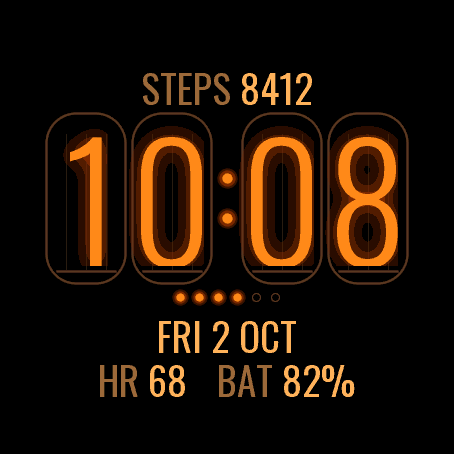
 Retro
RetroNixie Lamp
Four glowing nixie tubes on your wrist.
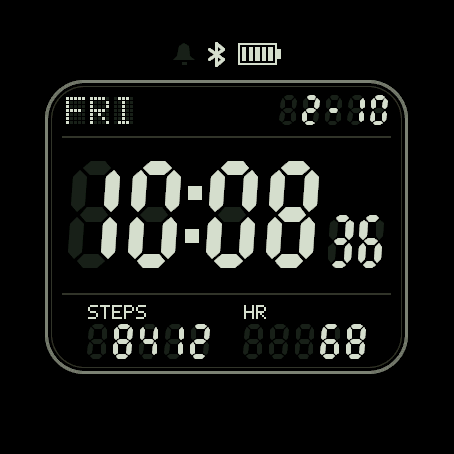
 Retro
RetroLCD 84
A retro segment LCD, ghost segments and all.
 Fun
FunPixel Pal
A pixel pet that lives your day with you.
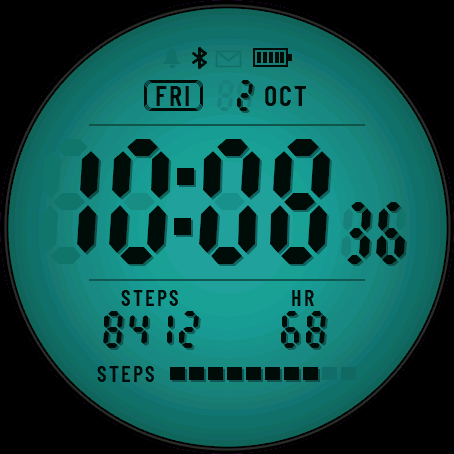 Backlit LcdSoon
Lume Panel
A colour backlit LCD panel with glowing segments, in five backlight colours.
Tell us how to make it better
Missing a data field, a colour, a layout? Found a bug on your watch model? Write it here. We read every message and ship improvements in updates.